611e0596f6
### Summary

modify docs display
add some images
delete enterprise docs
standardize capitalization
8.2 KiB
sidebar_position, title, sidebar_label, slug, sidebar_custom_props
| sidebar_position | title | sidebar_label | slug | sidebar_custom_props | ||
|---|---|---|---|---|---|---|
| 3 | Add Google Drive | Add Google Drive | /add_google_drive |
|
Add Google Drive
Add Google Drive as one of the data sources in RAGFlow.
This document provides step-by-step instructions for integrating Google Drive as a data source in RAGFlow.
1. Create a Google Cloud Project
You can either create a dedicated project for RAGFlow or use an existing Google Cloud external project. In this case, we create a Google Cloud project from scratch:
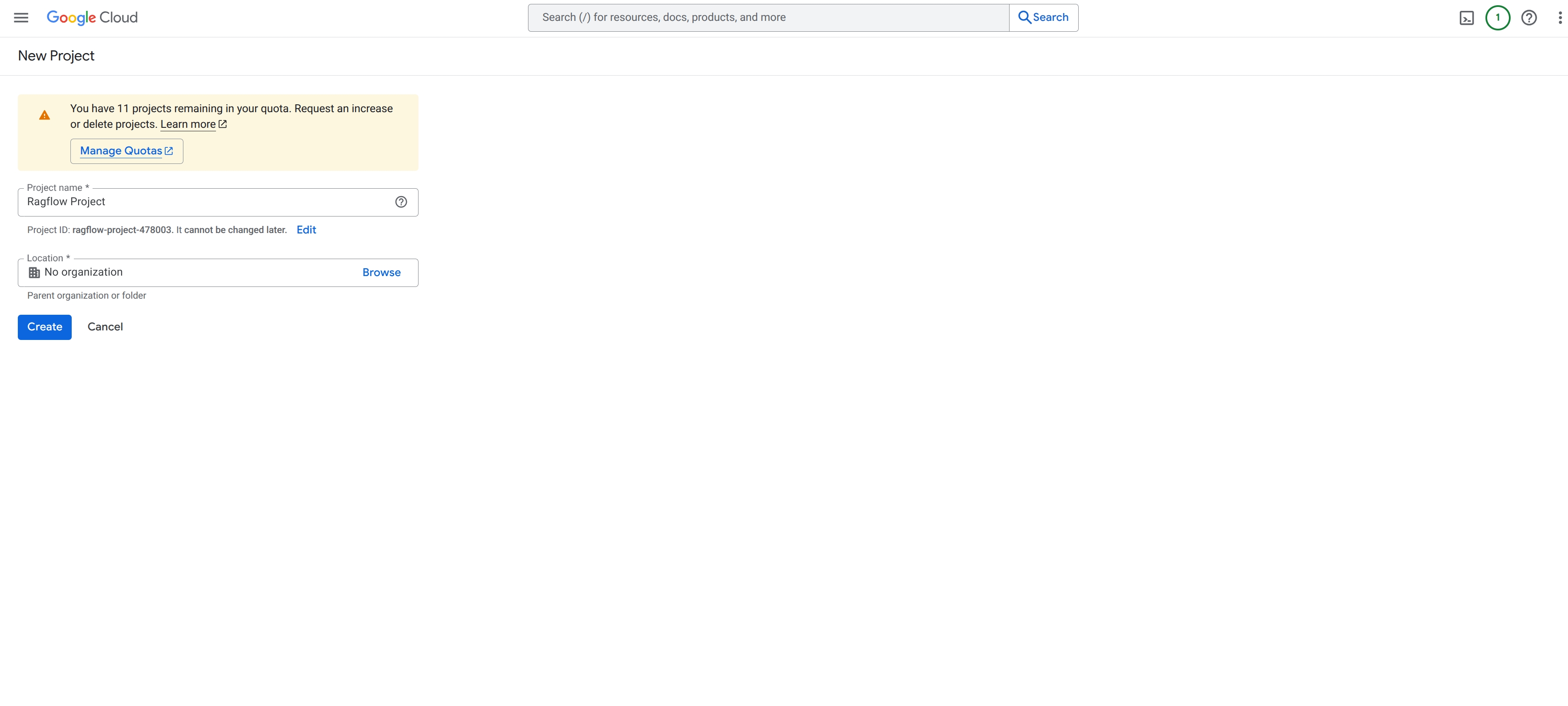
- Open the project creation page
https://console.cloud.google.com/projectcreate:
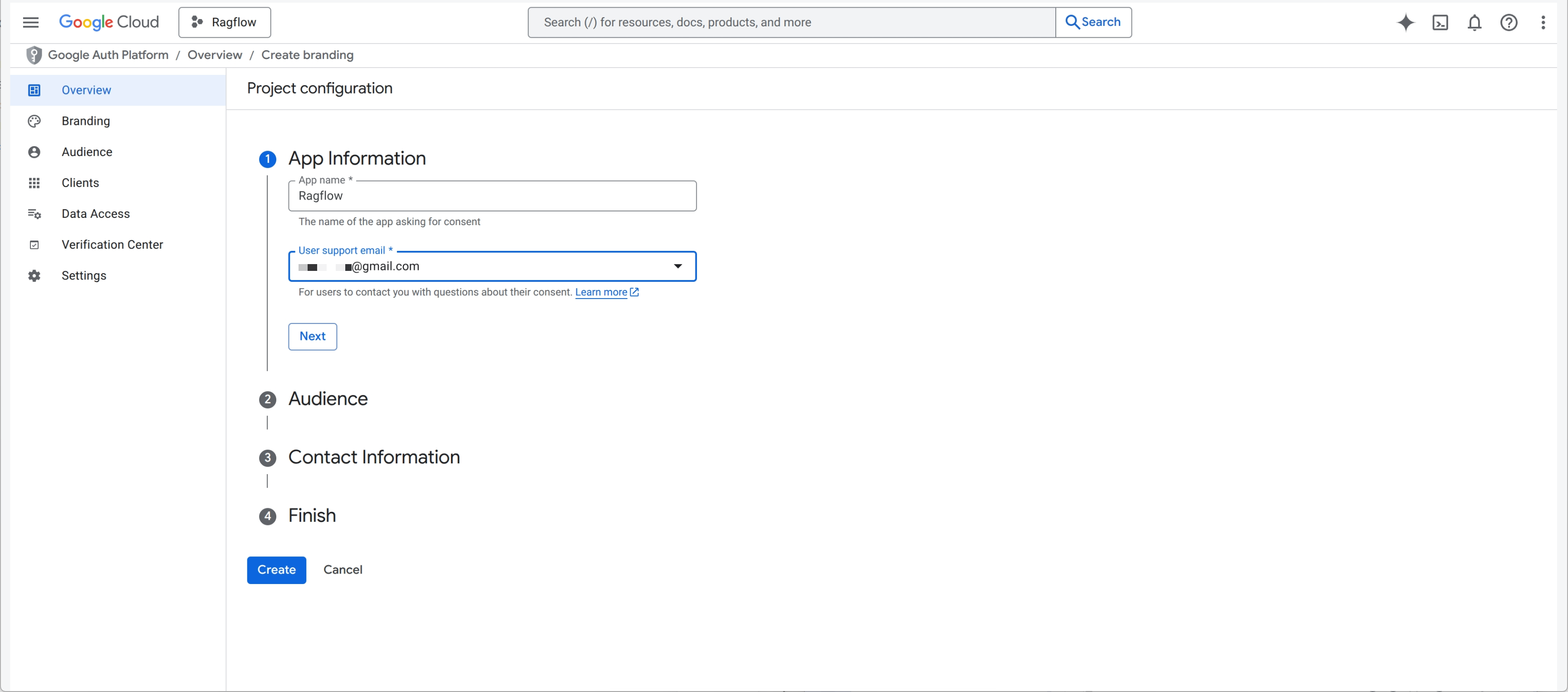
- Under App Information, provide an App name and your Gmail account as user support email:
- Select External:
Your app will start in testing mode and will only be available to a selected list of users.
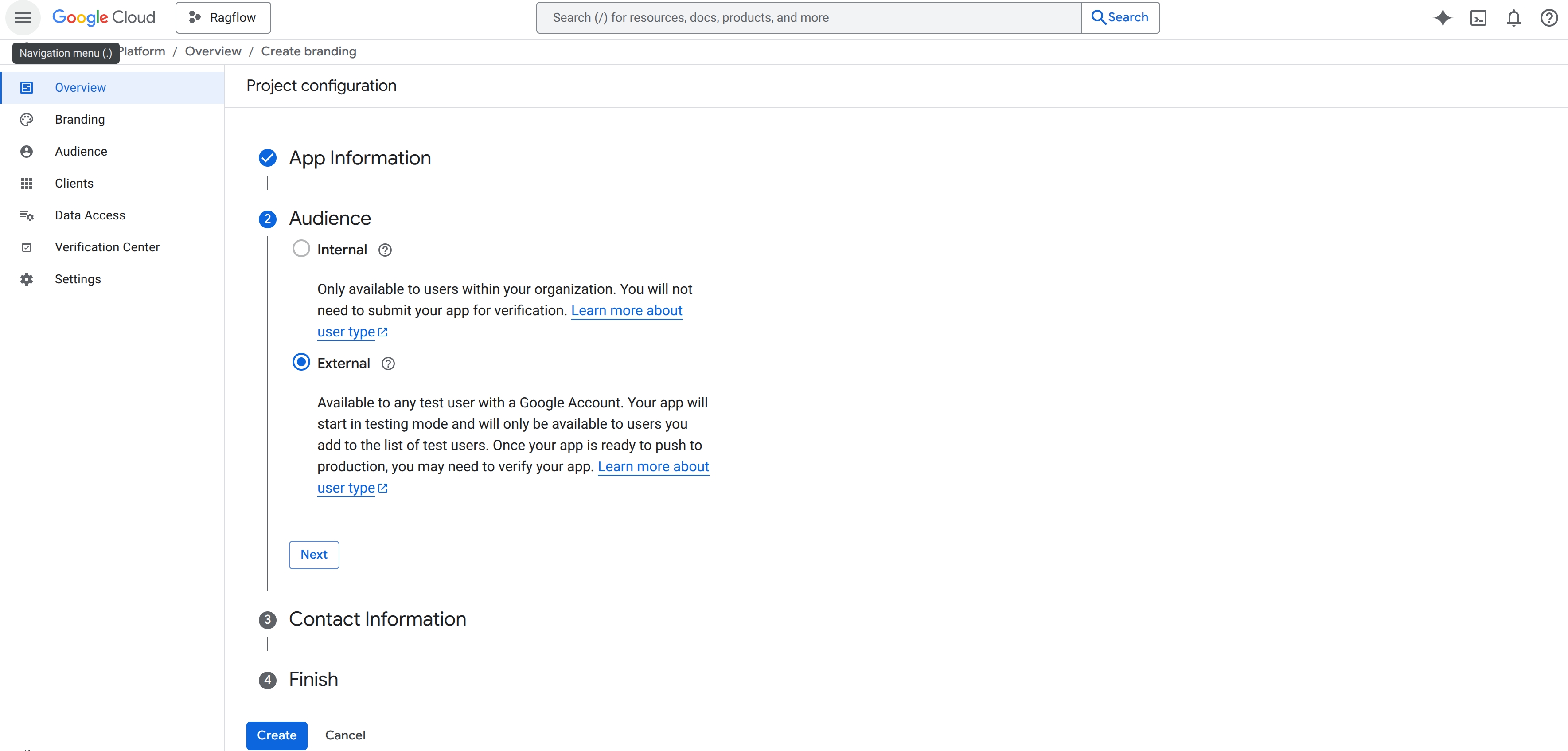 4: Click Create to confirm creation.
2. Configure OAuth Consent Screen
You need to configure the OAuth Consent Screen because it is the step where you define how your app asks for permission and what specific data it wants to access on behalf of a user. It's a mandatory part of setting up OAuth 2.0 authentication with Google. Think of it as creating a standardized permission slip for your app. Without it, Google will not allow your app to request access to user data.
- Go to APIs & Services → OAuth consent screen.
- Ensure User Type is set to External:
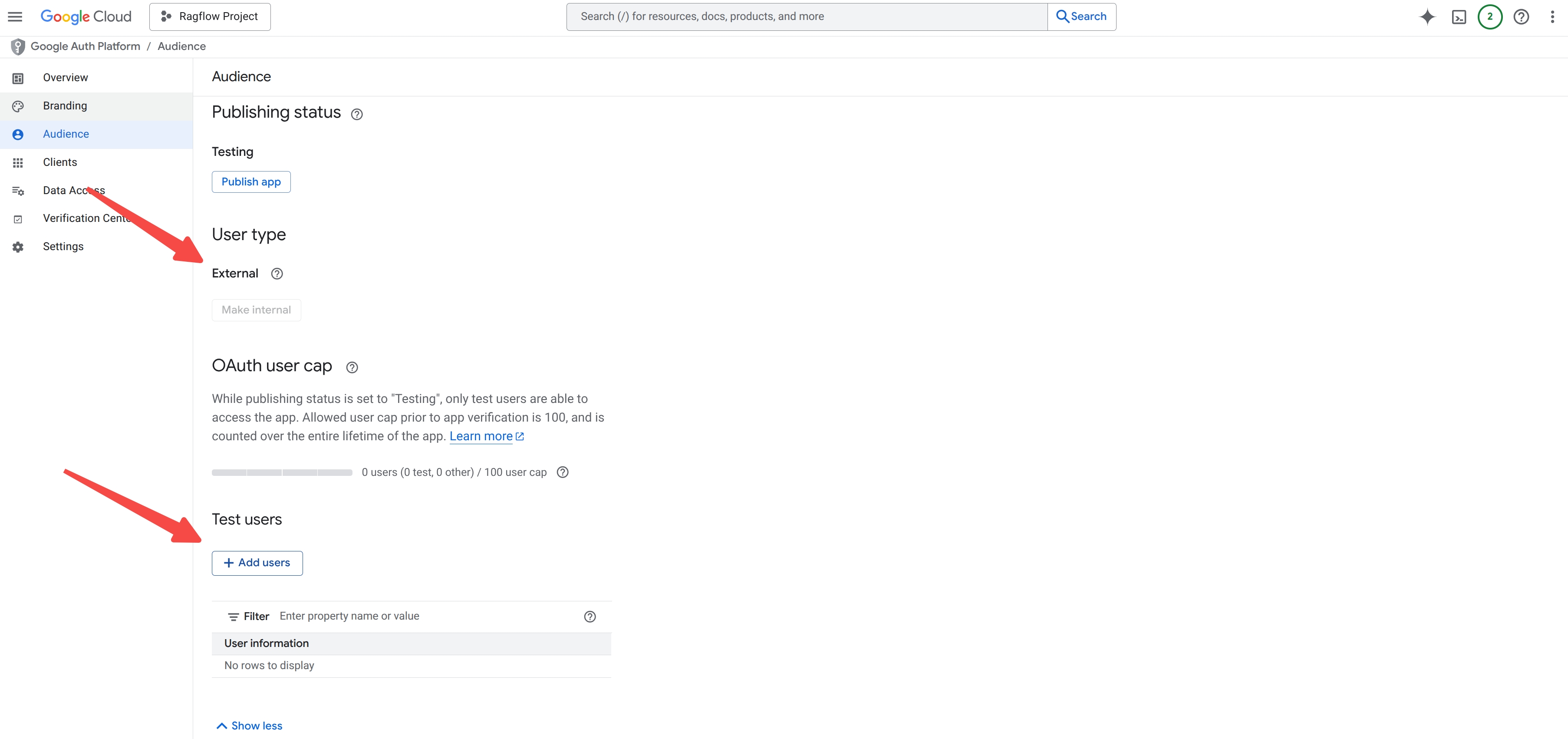
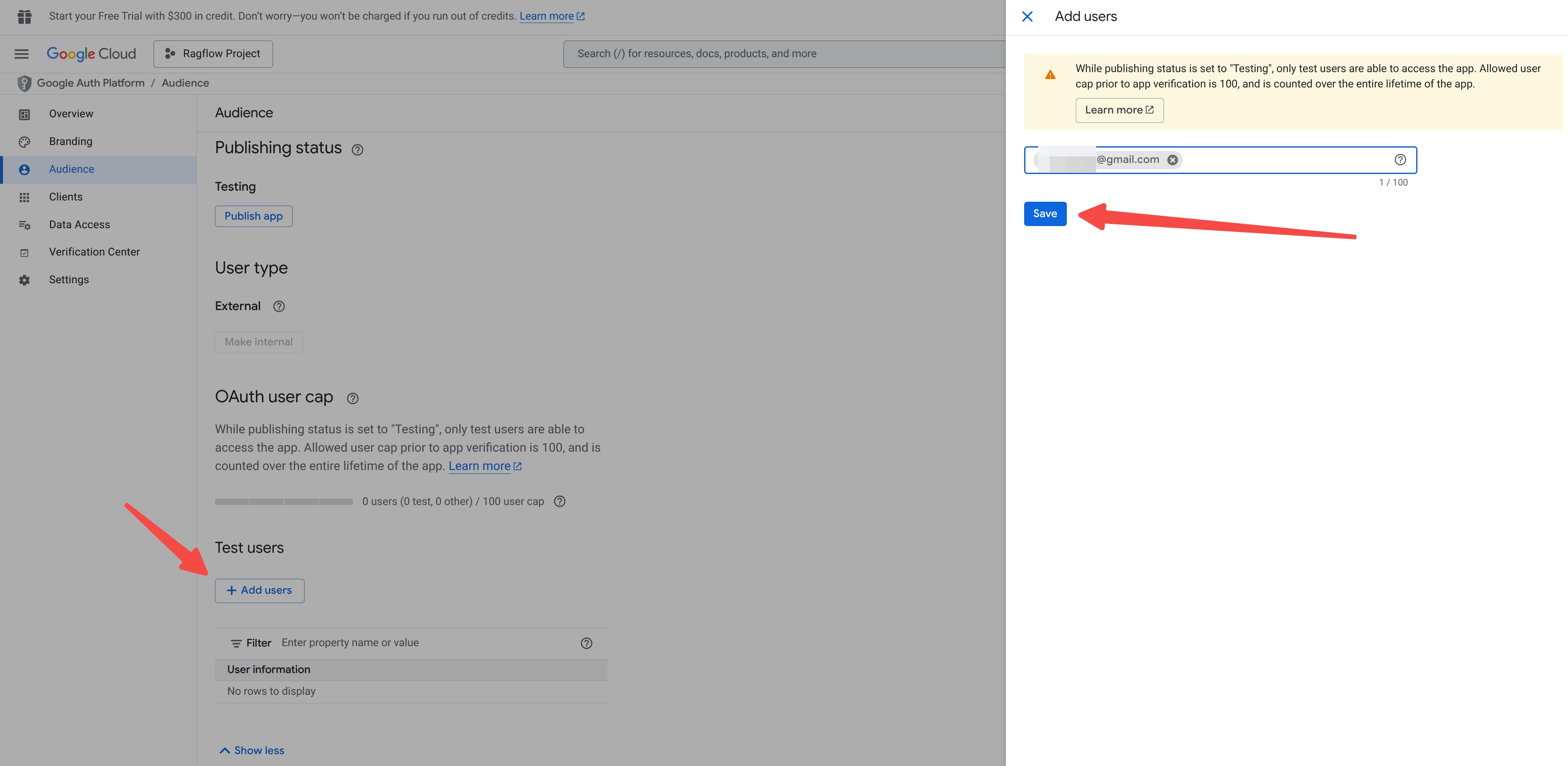
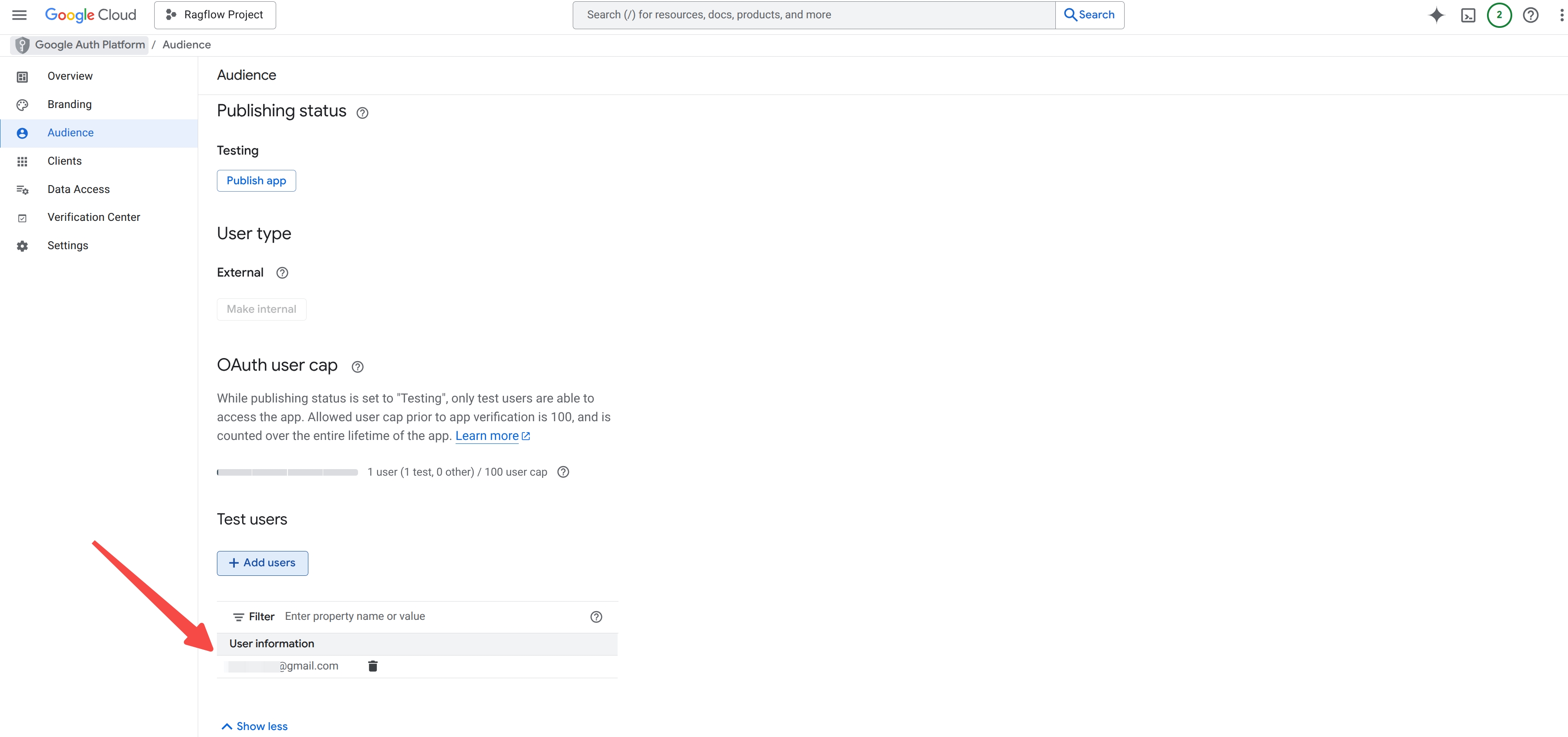
- Under Test Users, click + Add users to add test users:
3. Create OAuth Client Credentials
-
Navigate to
https://console.cloud.google.com/auth/clients. -
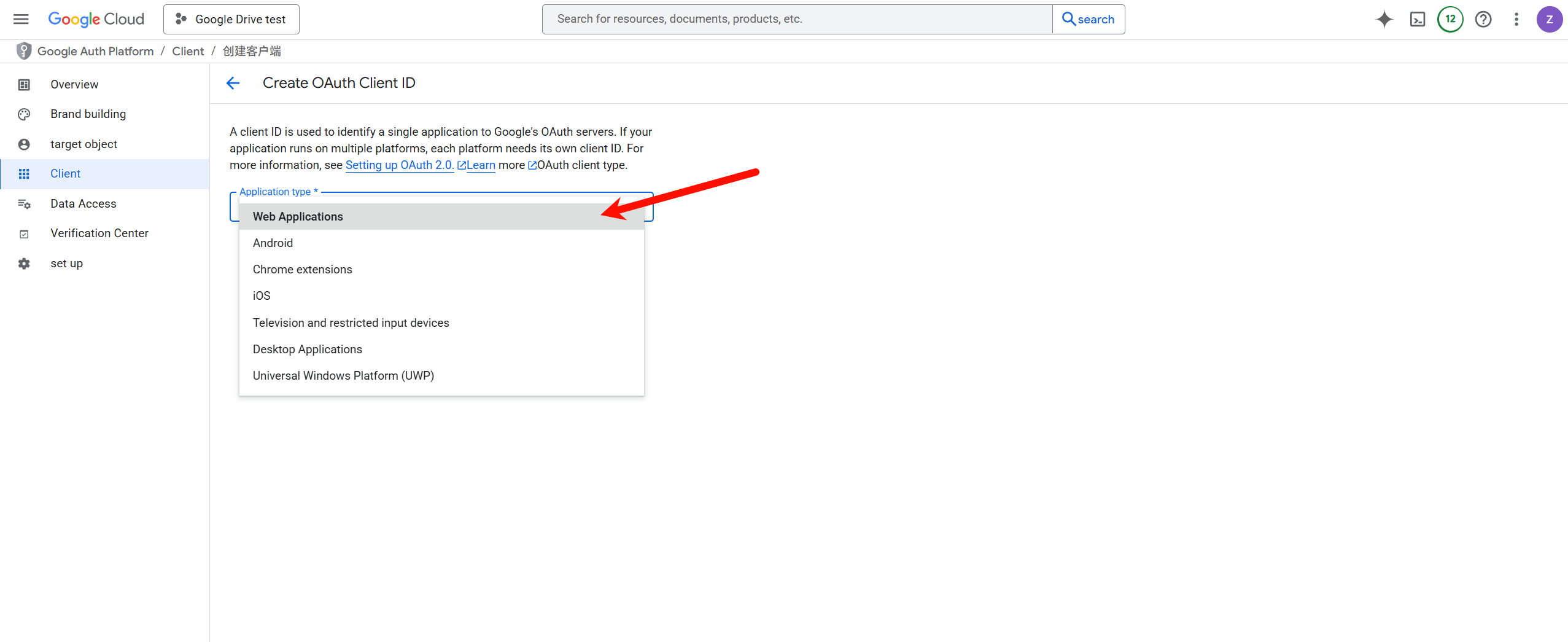
Select Web Application as Application type for the created project:
-
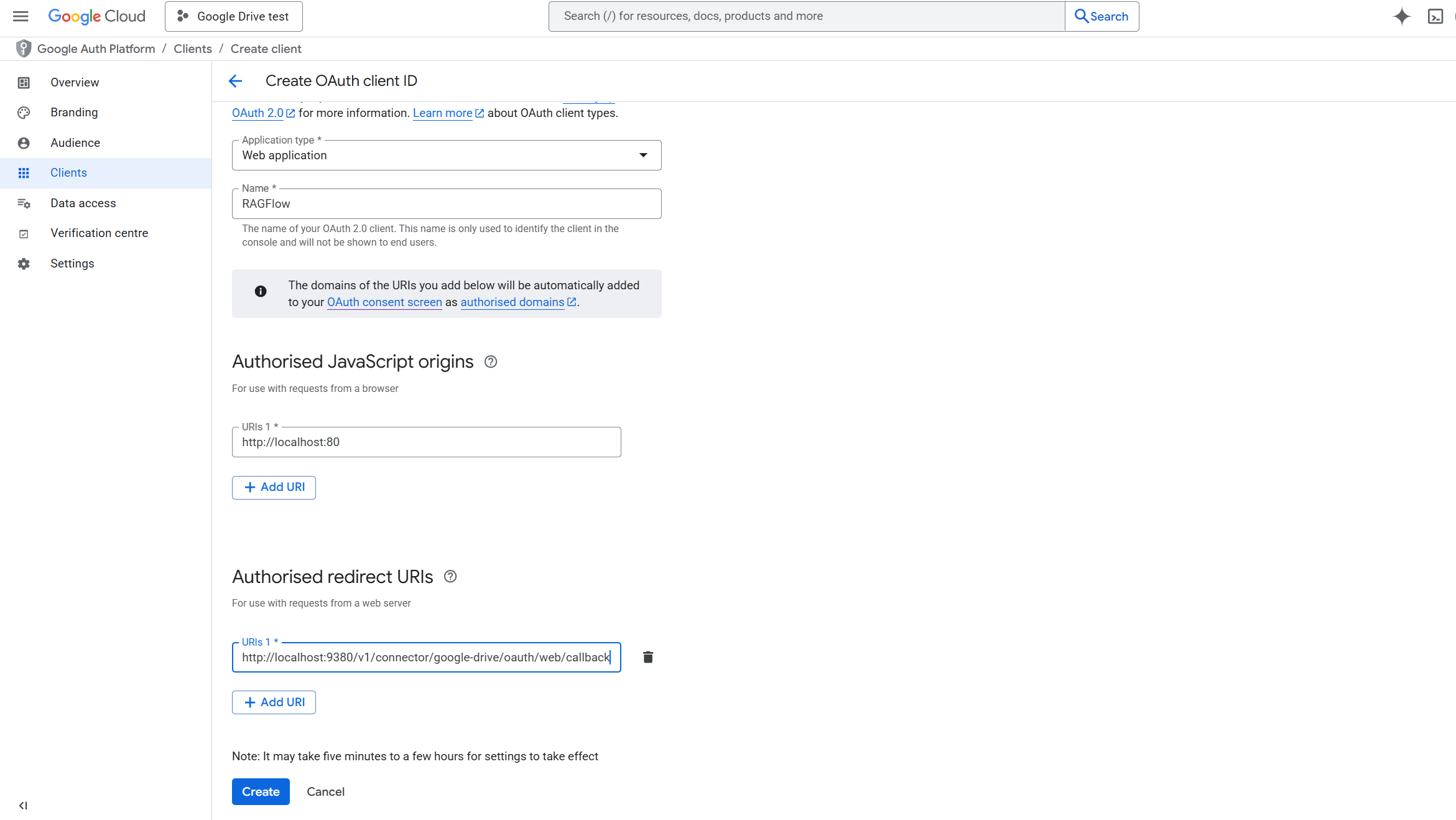
Enter a client name.
-
Add
http://localhost:9380/api/v1/connectors/google-drive/oauth/web/callbackas Authorized redirect URIs: -
Add Authorized JavaScript origins:
- If deploying RAGFlow from Docker, use
http://localhost:80:
- If building RAGFlow from source, use
http://localhost:9222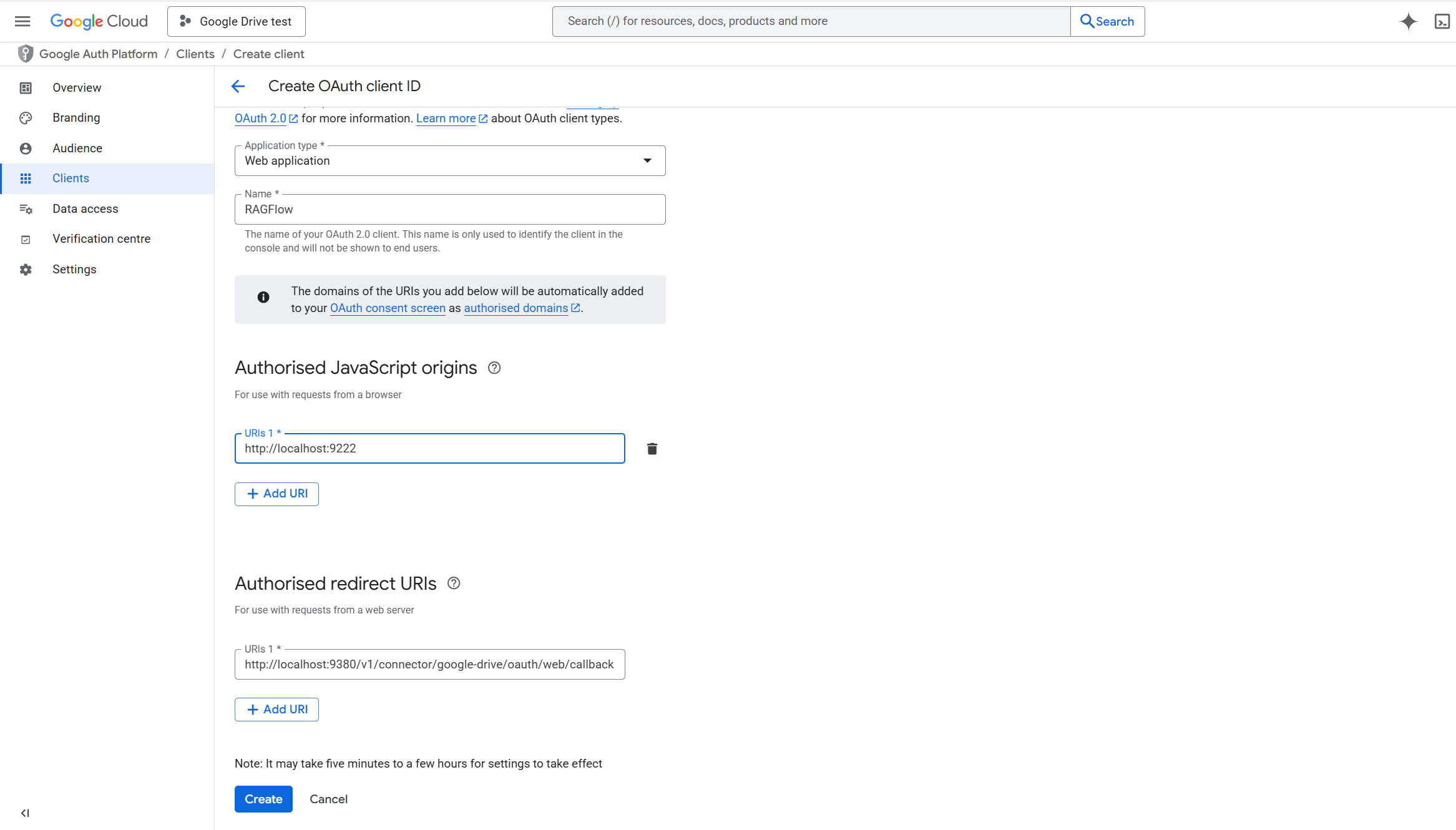
- If deploying RAGFlow from Docker, use
-
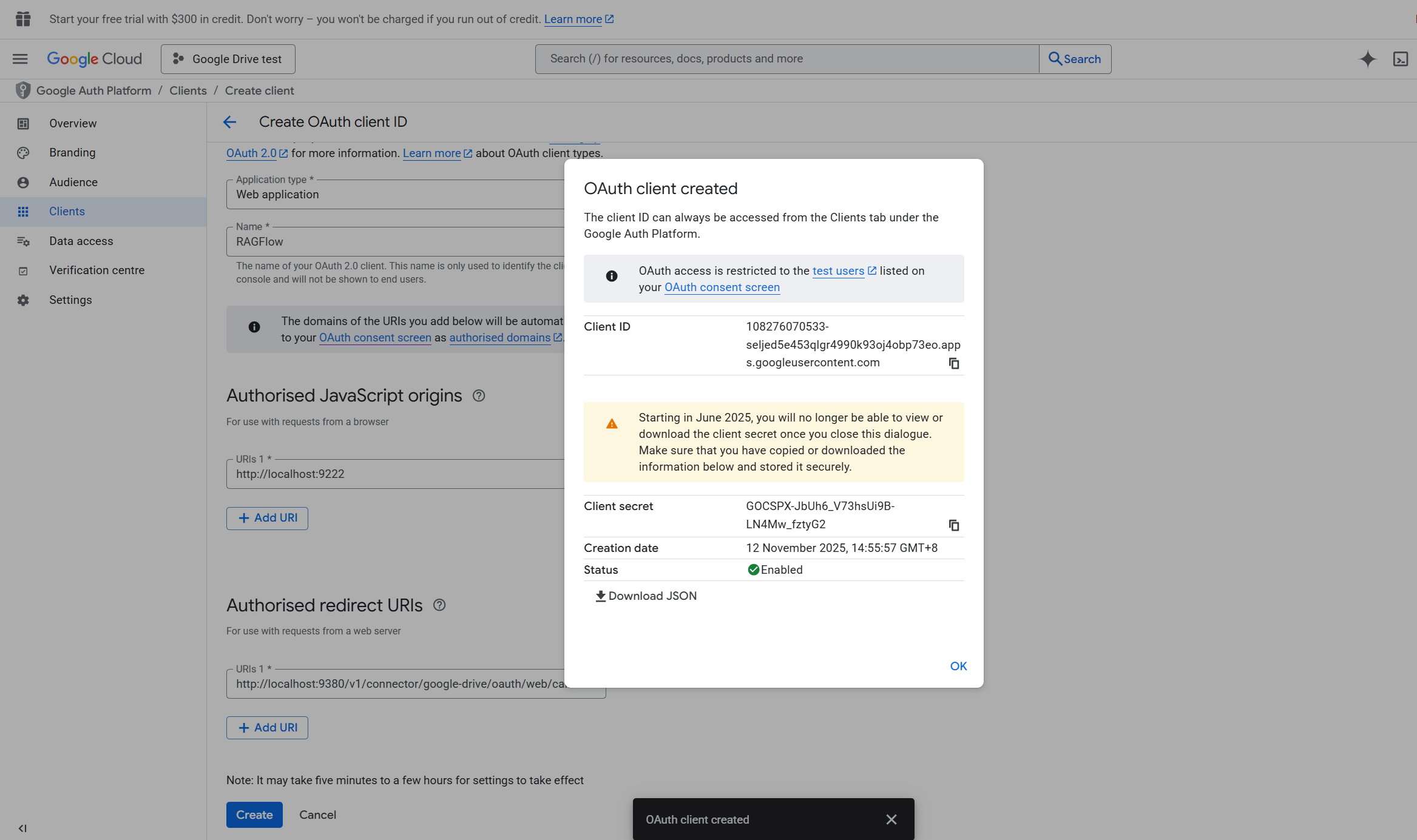
After saving, click Download JSON in the popup window; this credential file will later be uploaded into RAGFlow.
4. Add Scopes
You need to add scopes to explicitly define the specific level of access your application requires from a user's Google Drive, such as read-only access to files. These scopes are presented to the user on the consent screen, ensuring transparency by showing exactly what permissions they are granted. To do so:
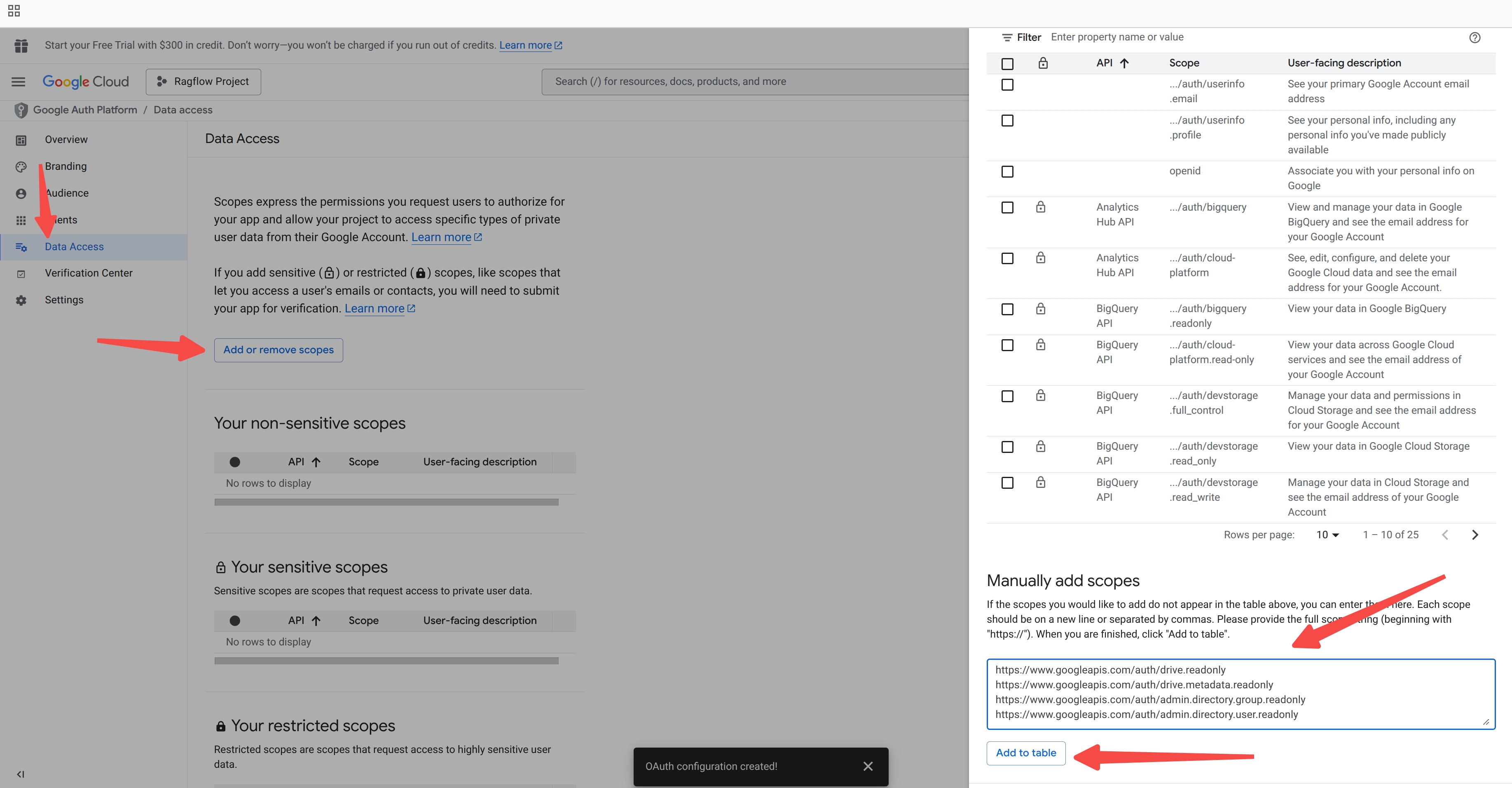
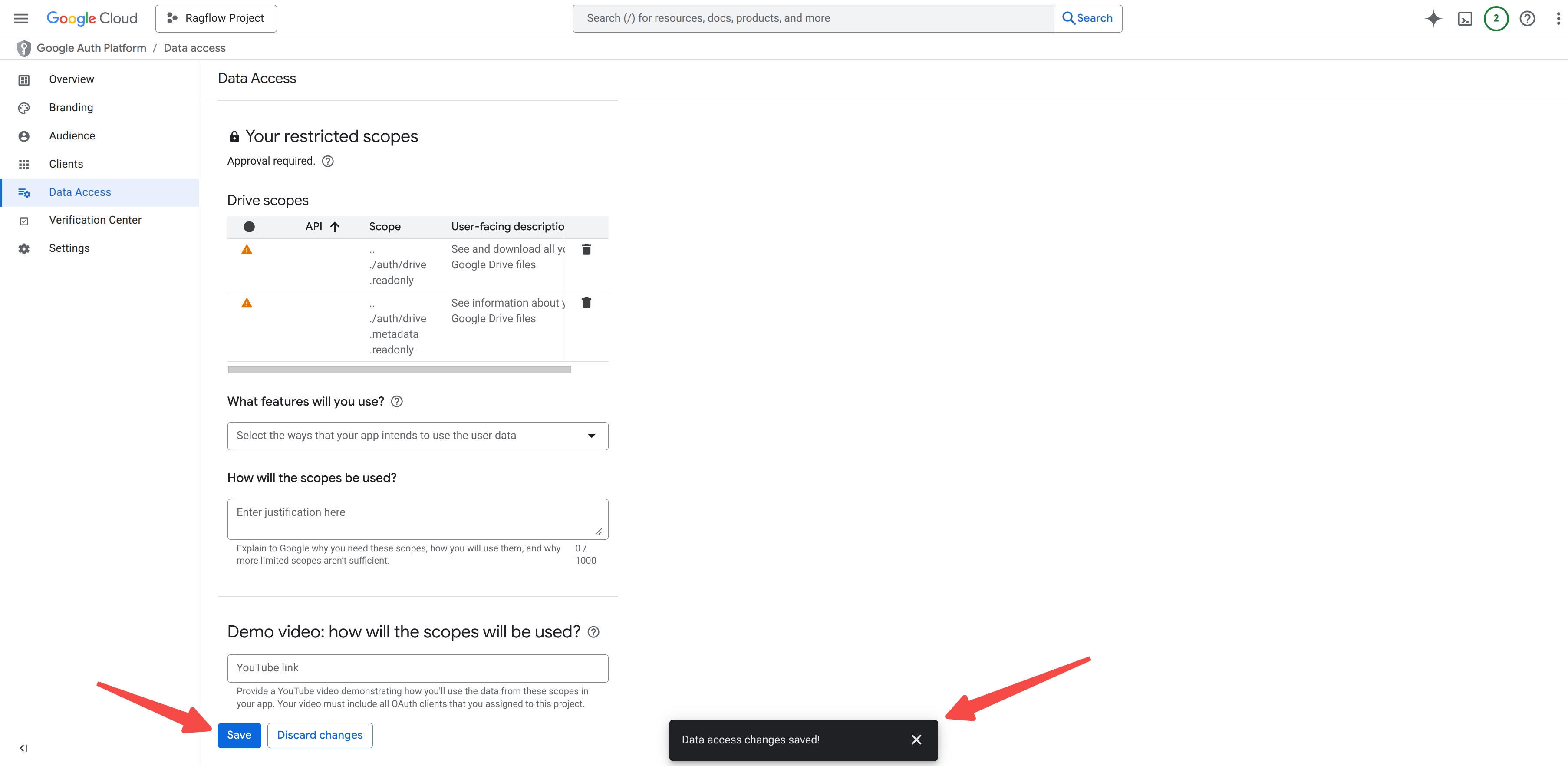
- Click Data Access → Add or remove scopes, and add the following entries and click Update:
https://www.googleapis.com/auth/drive.readonly
https://www.googleapis.com/auth/drive.metadata.readonly
https://www.googleapis.com/auth/admin.directory.group.readonly
https://www.googleapis.com/auth/admin.directory.user.readonly
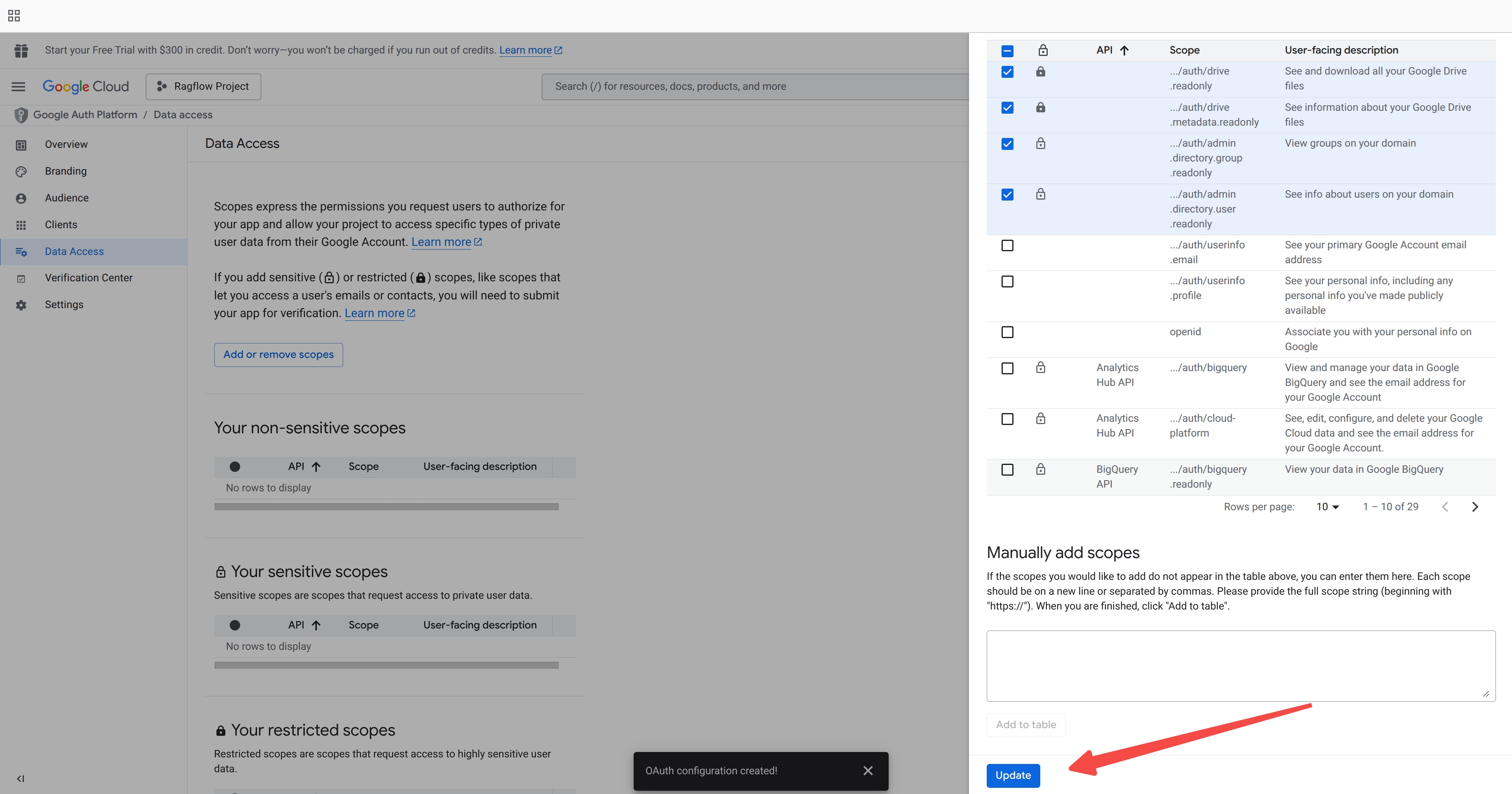
- Click Save to save your data access changes:
5. Enable Required APIs
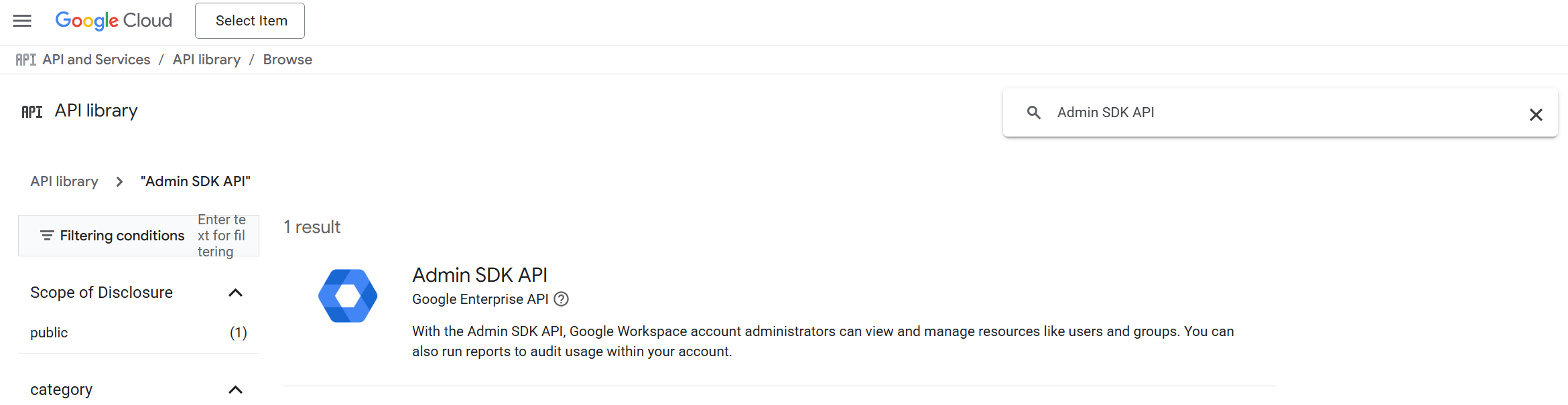
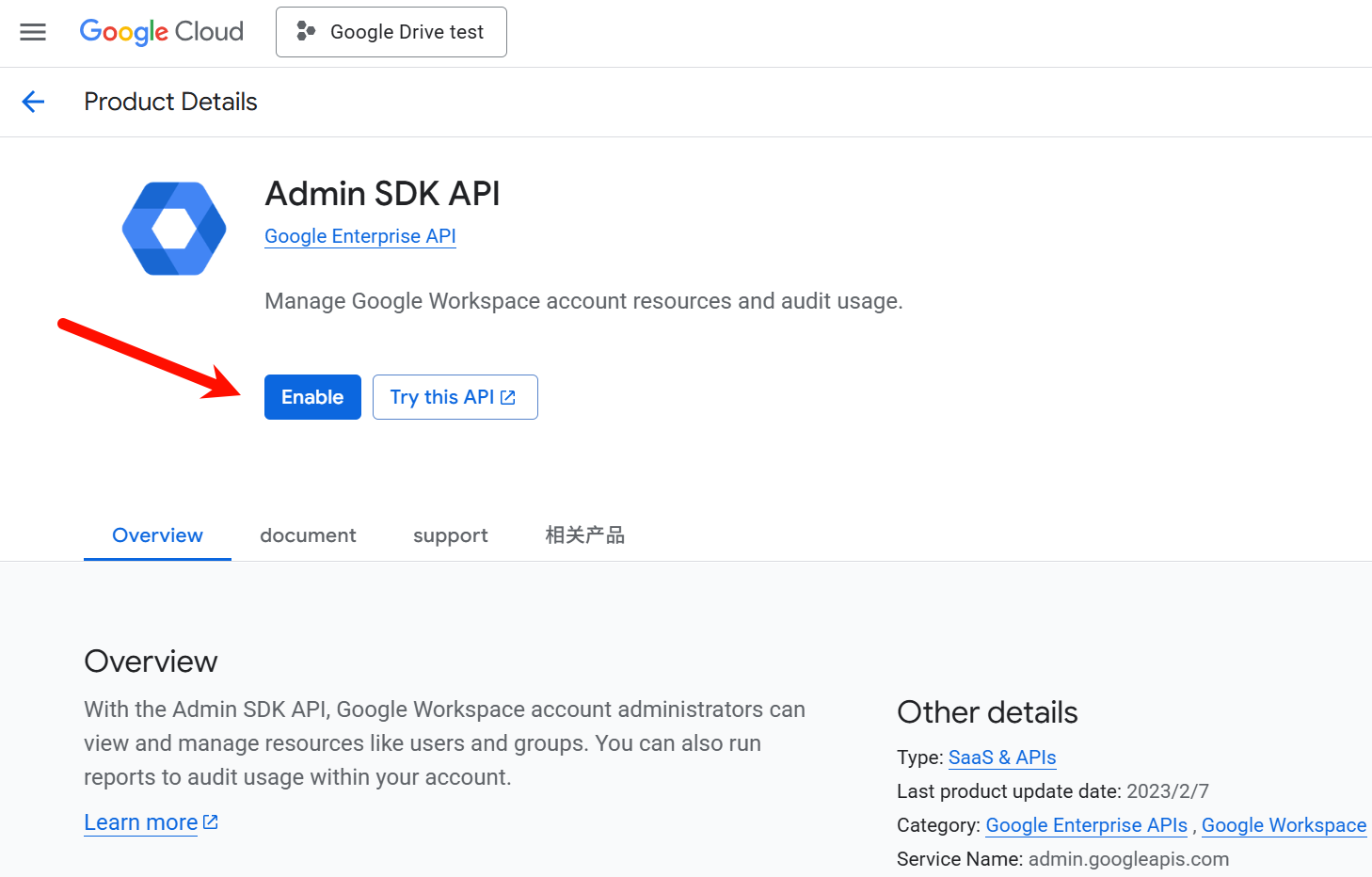
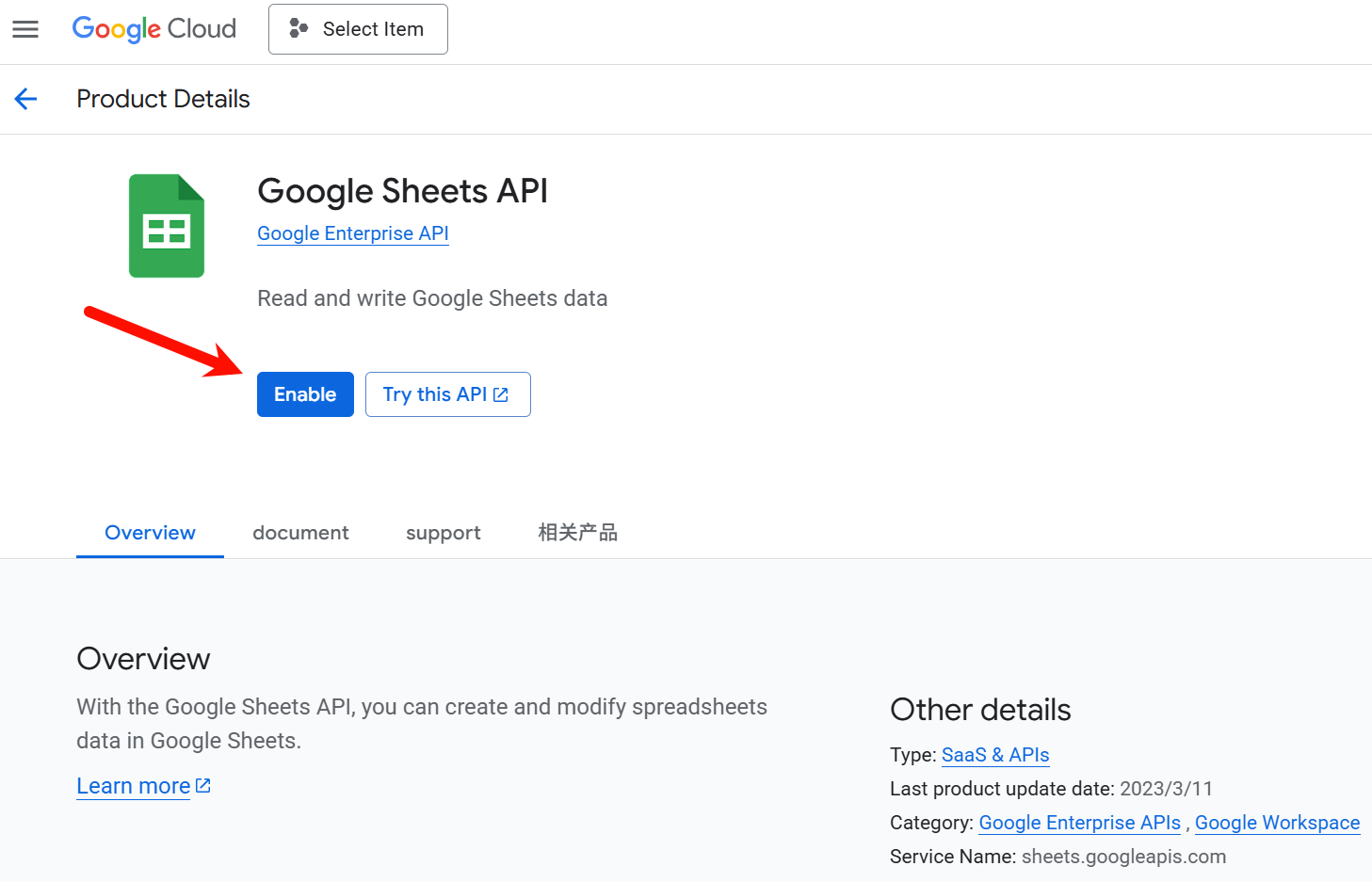
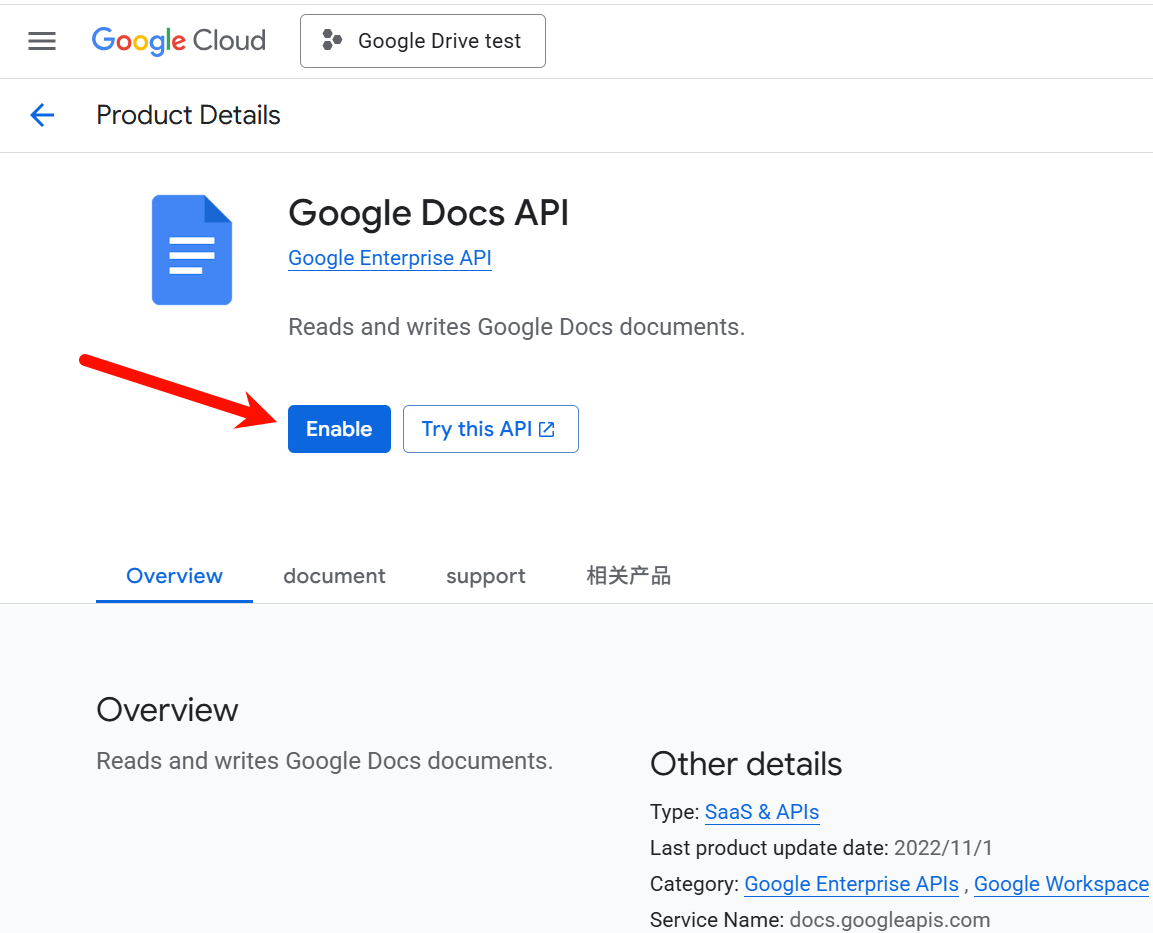
You need to enable the required APIs (such as the Google Drive API) to formally grant your Google Cloud project permission to communicate with Google's services on behalf of your application. These APIs act as a gateway; even if you have valid OAuth credentials, Google will block requests to a disabled API. Enabling them ensures that when RAGFlow attempts to list or retrieve files, Google's servers recognize and authorize the request.
-
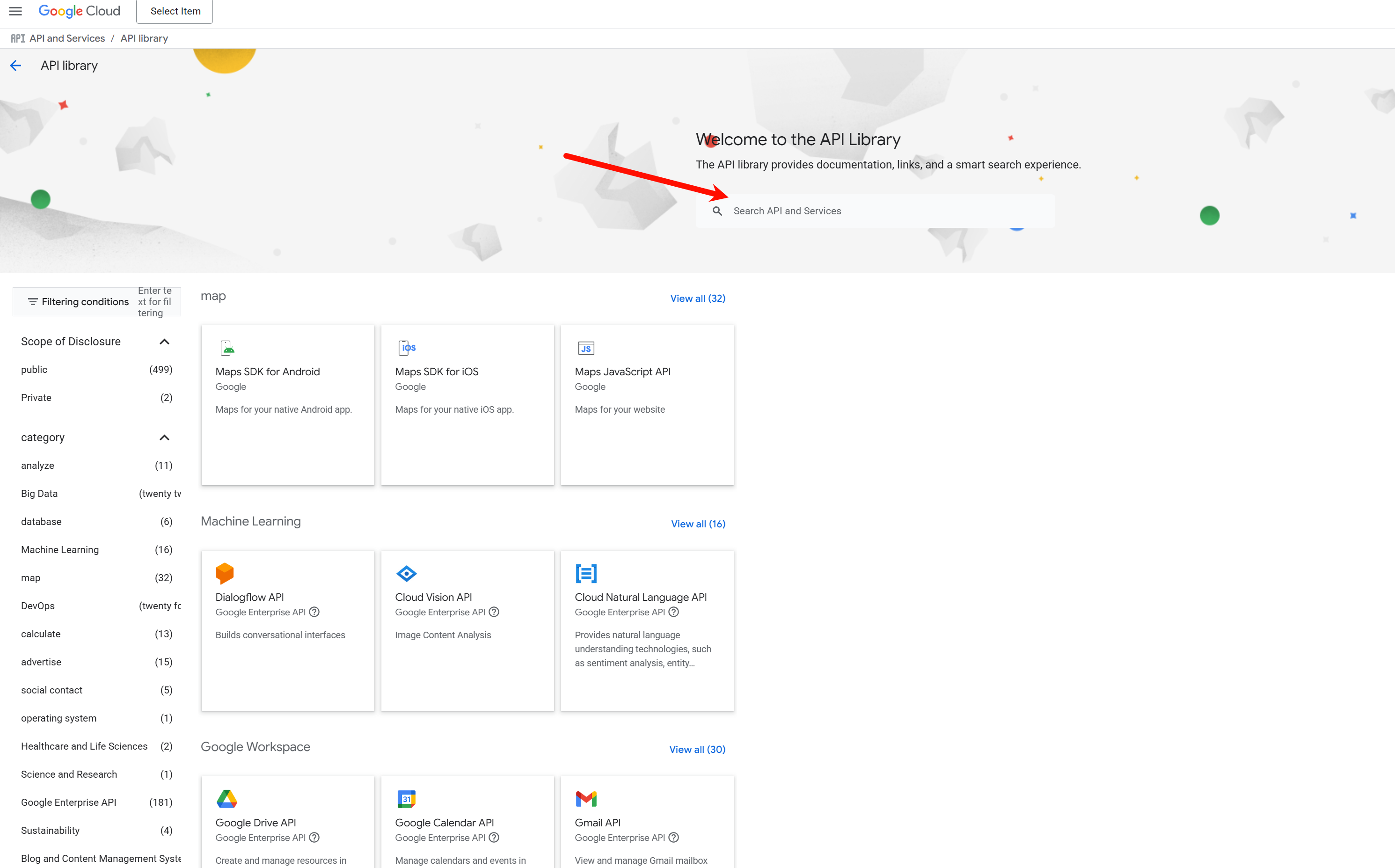
Navigate to the Google API Library
https://console.cloud.google.com/apis/library:
-
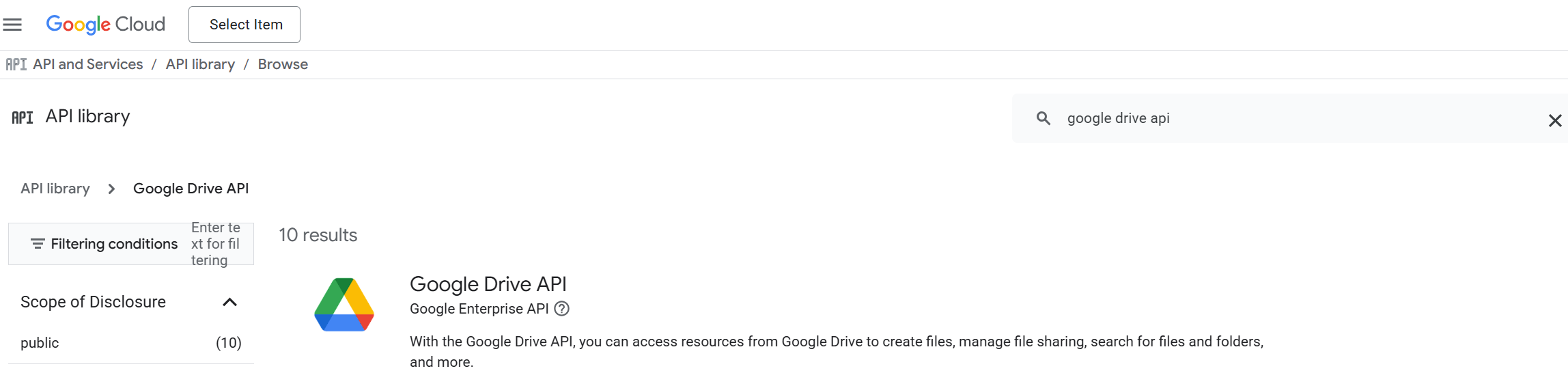
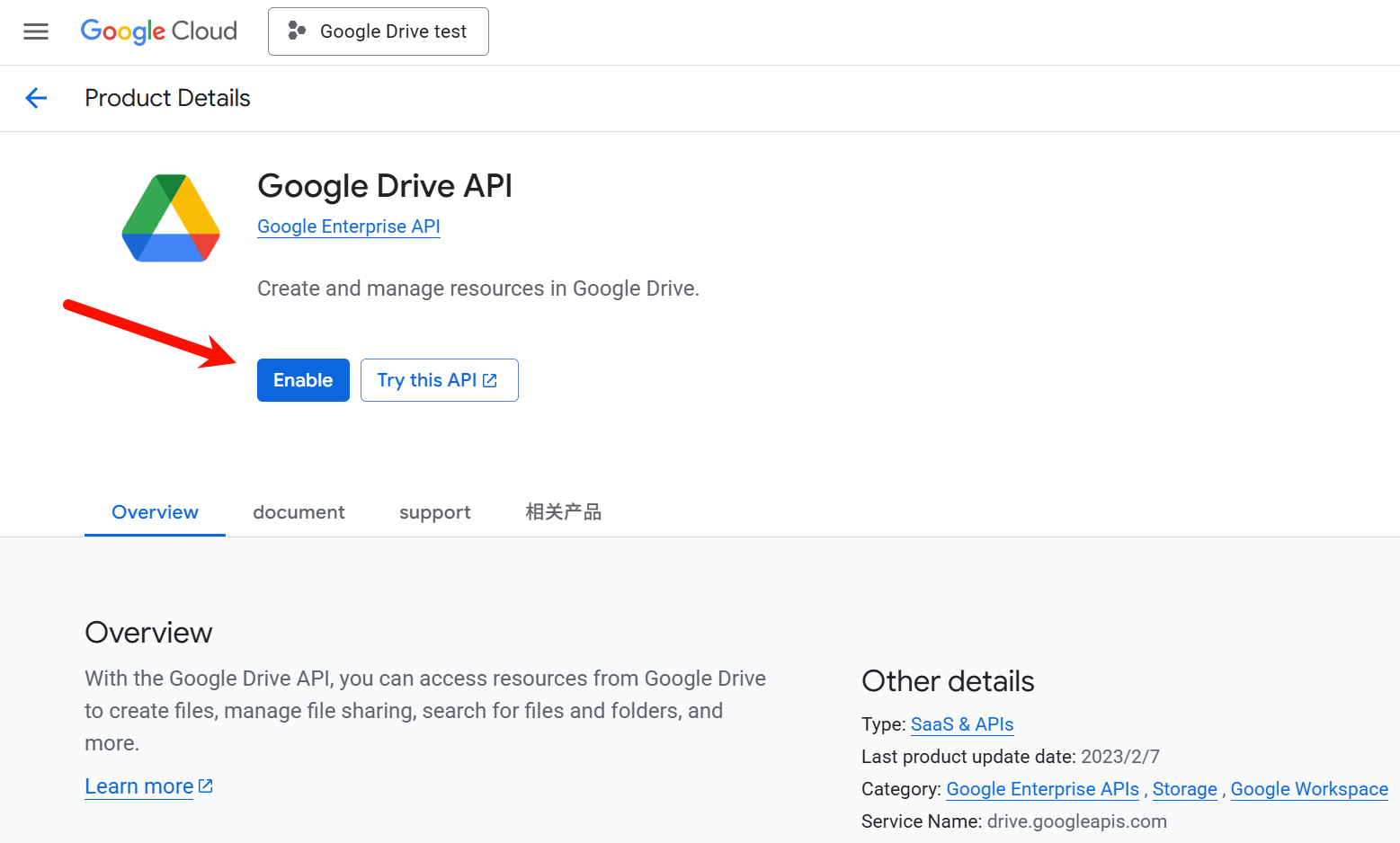
Enable the following APIs:
- Google Drive API
- Admin SDK API
- Google Sheets API
- Google Docs API
6. Add Google Drive as a Data Source in RAGFlow
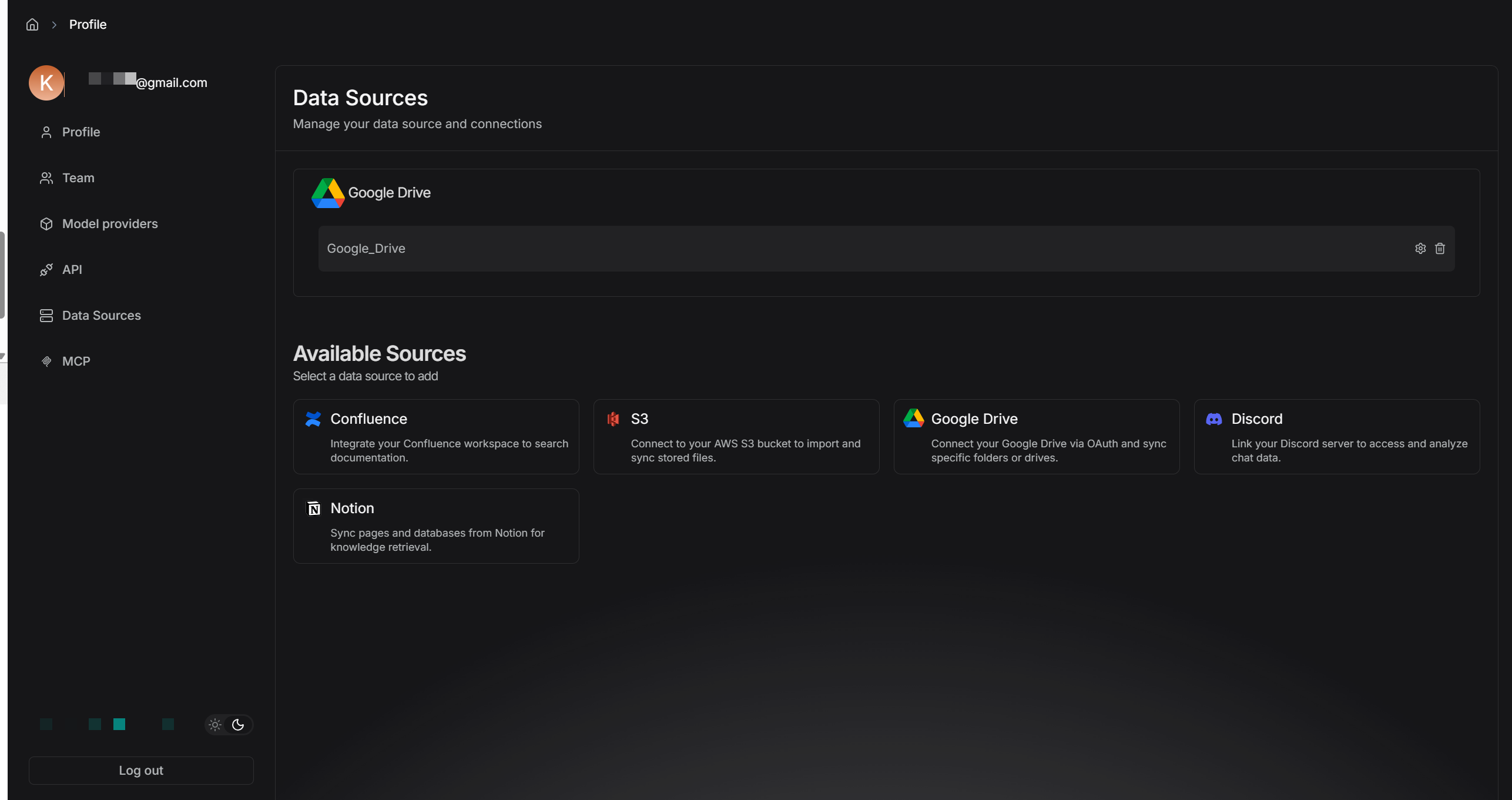
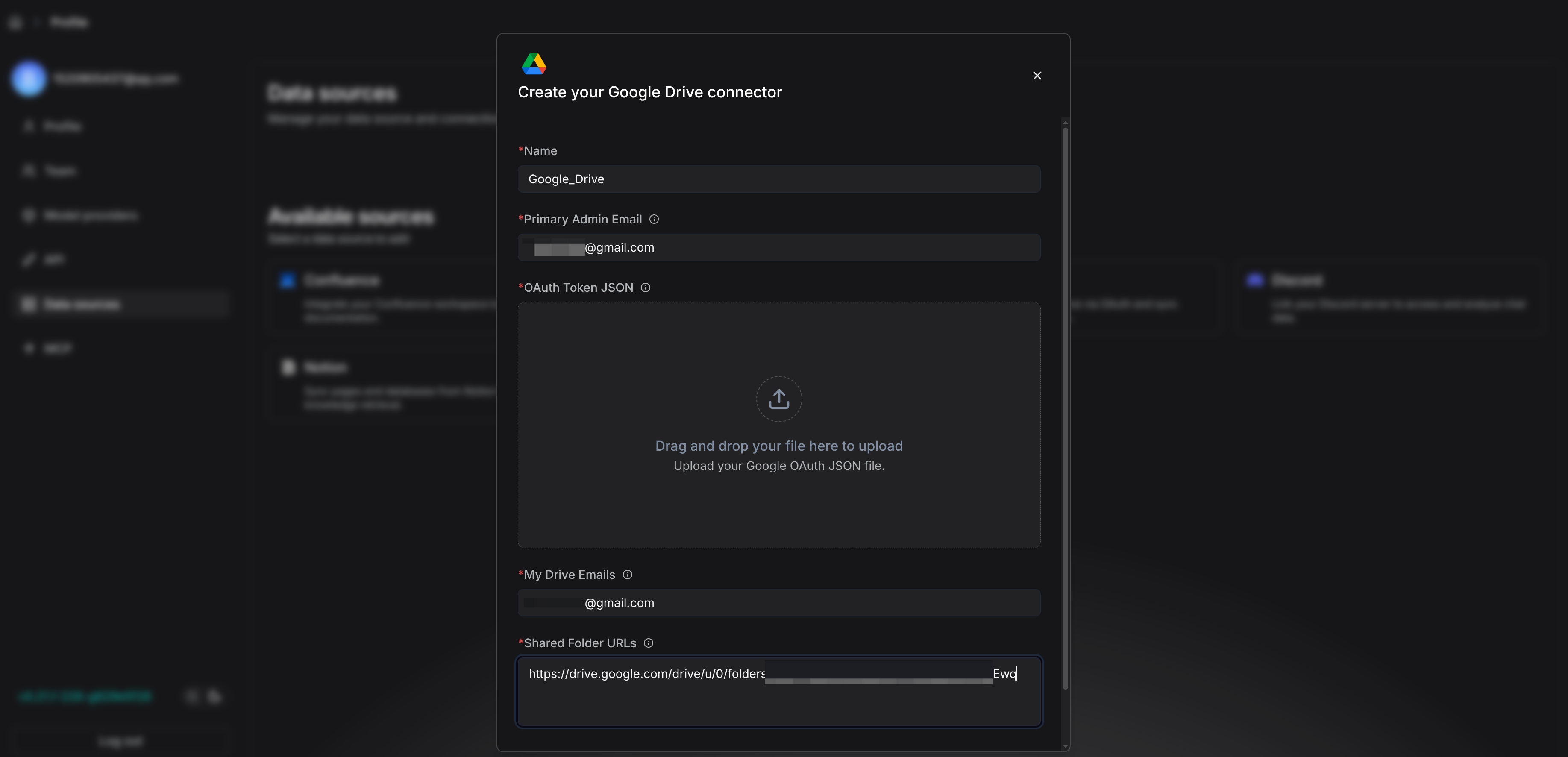
- Go to Data Sources inside RAGFlow and select Google Drive.
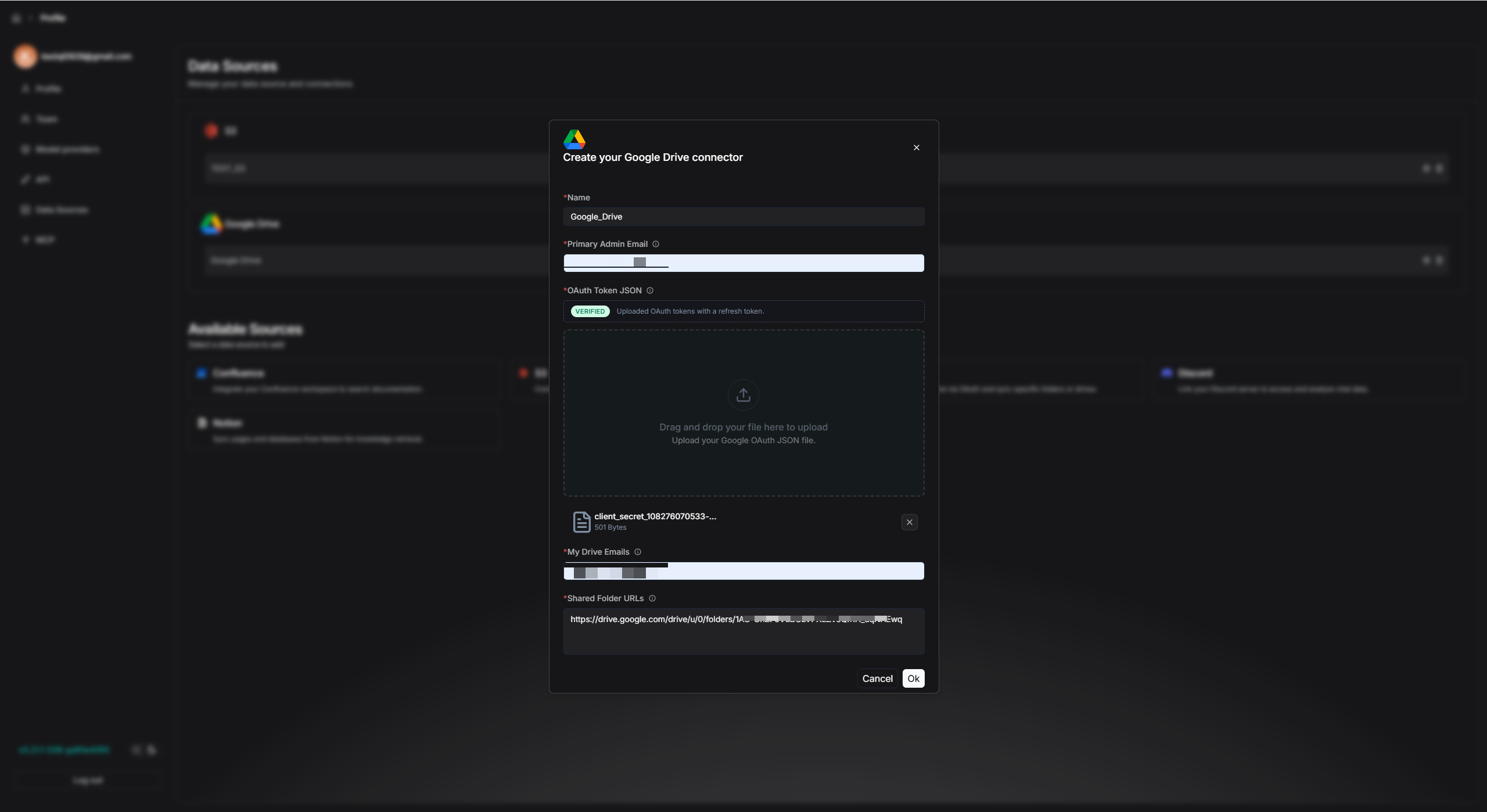
- Under OAuth Token JSON, upload the previously downloaded JSON credentials you saved in Section 3:
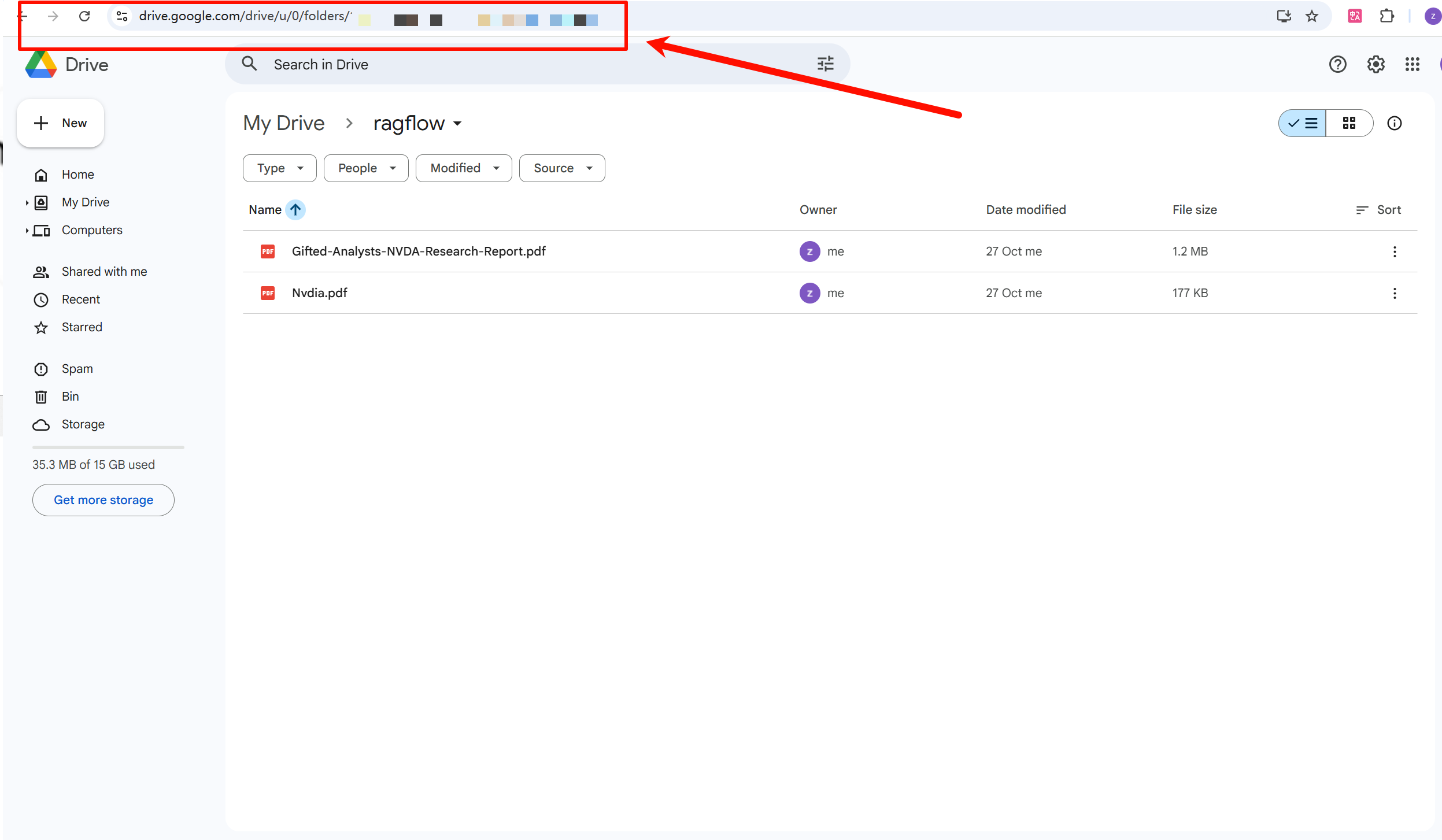
- Enter the url of the shared Google Drive folder link:
- Click Authorize with Google
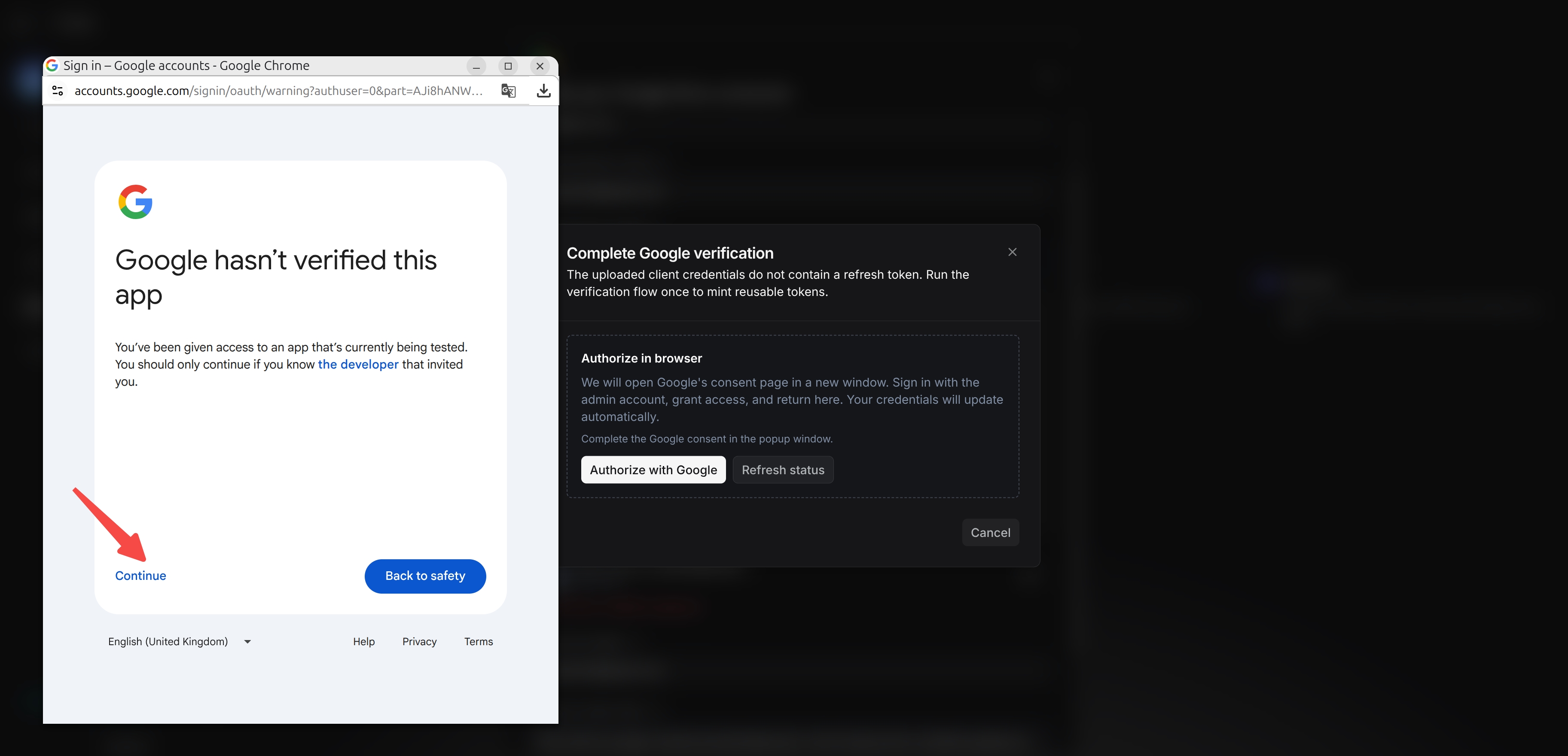
A browser window appears showing that Google hasn't verified this app.
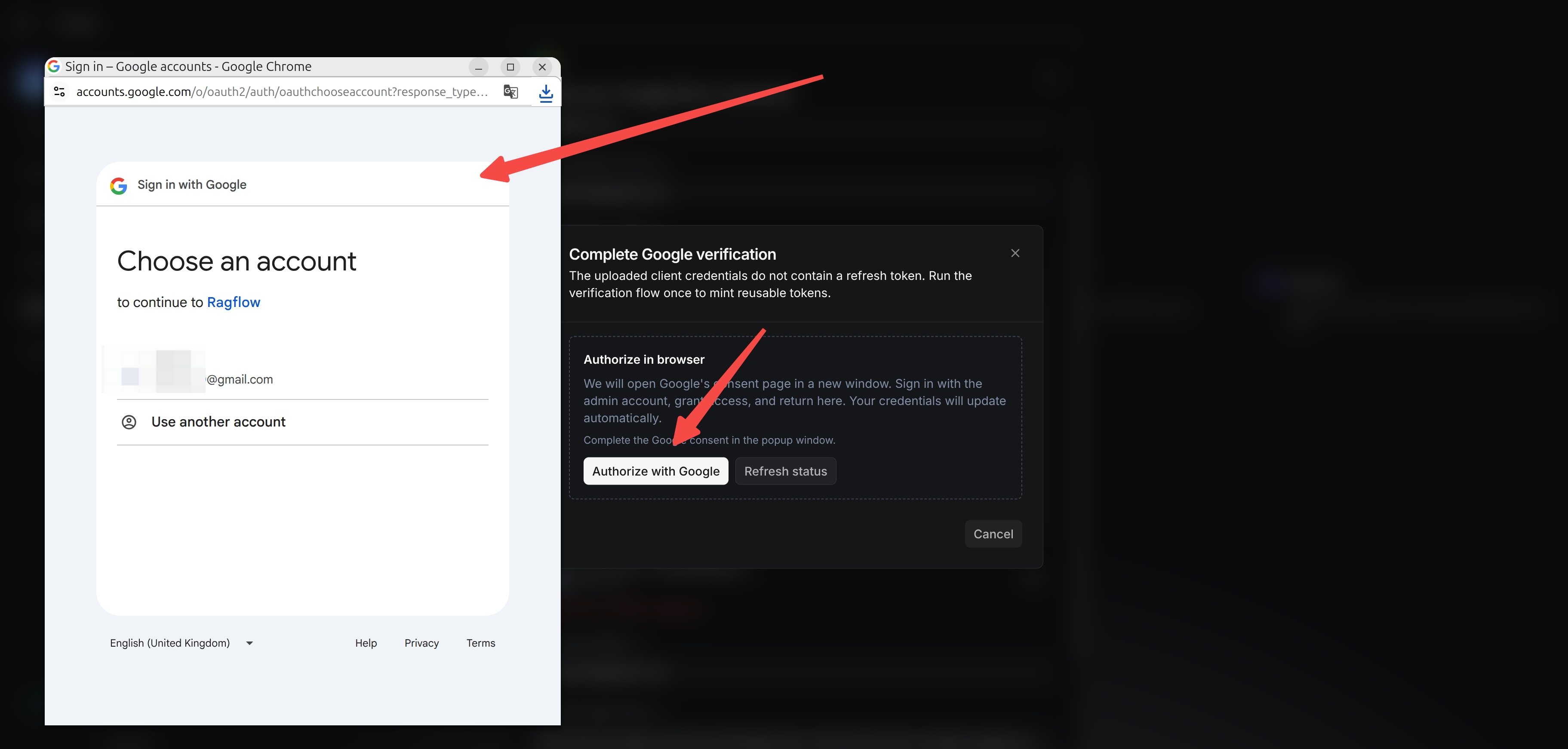
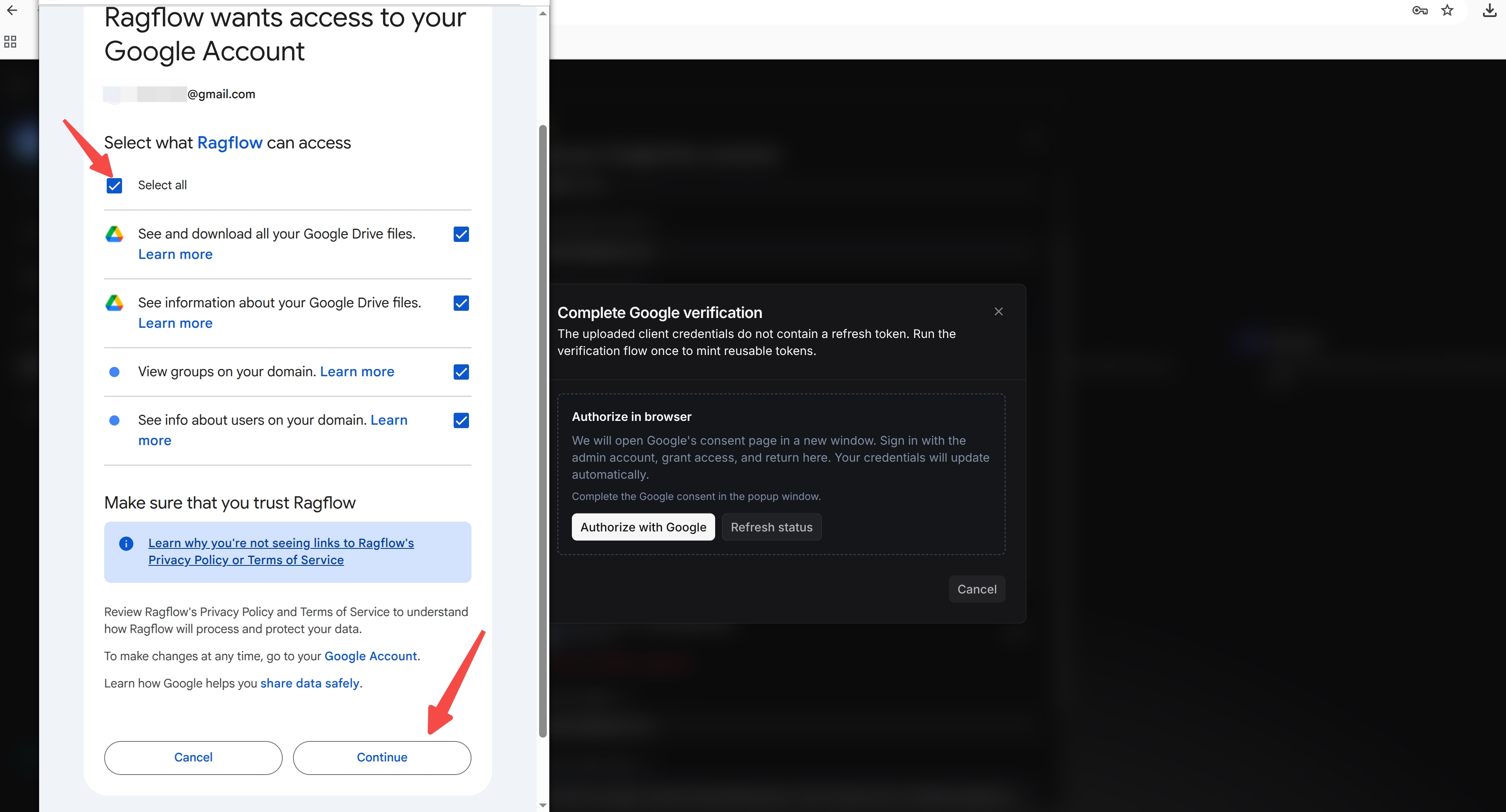
- Click Continue → Select All → Continue.
- When the authorization succeeds, select OK to add the data source.