14 KiB
sidebar_position, title, sidebar_label, slug, sidebar_custom_props
| sidebar_position | title | sidebar_label | slug | sidebar_custom_props | ||
|---|---|---|---|---|---|---|
| 1 | Basic Component Configuration | Basic Component Configuration | /basic_component_configuration |
|
Basic Component Configuration
Begin Component
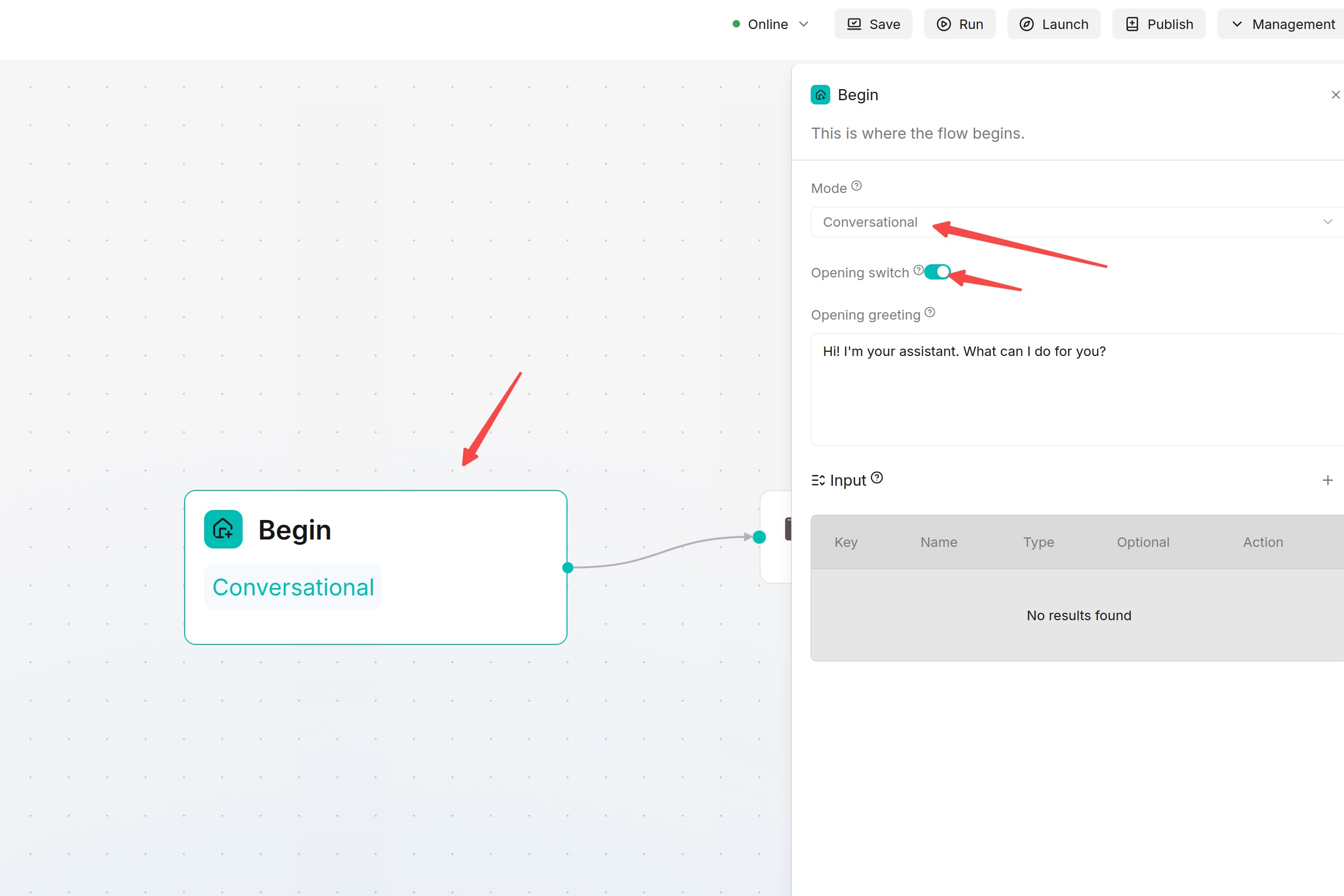
Begin is the starting point of an Agent workflow. It is used to set the trigger mode, opening greeting, and global input variables. Every Agent must contain a Begin component.
Trigger Mode
Begin supports the following modes:
- Conversational: Triggered from a conversation. This is suitable for regular chat-style Agents.
- Task: Started as a task. This is suitable for non-conversational automated workflows.
- Webhook: Triggered by external HTTP requests. This is suitable for system integration, automation tasks, and third-party callbacks.
When Webhook mode is selected, the system generates the current Agent's Webhook URL. You can continue to configure the request method, security authentication, request schema, and response method.
Opening Greeting
In Conversational mode, you can set the first message that the Agent says to the user in Opening greeting. The opening greeting should describe what the Agent can handle, and should not be written as a lengthy product introduction.
Example:
Hello, I can help you query product materials, compare models, and generate installation suggestions.
Please describe your question, or upload the files that need to be analyzed.
Input Variables
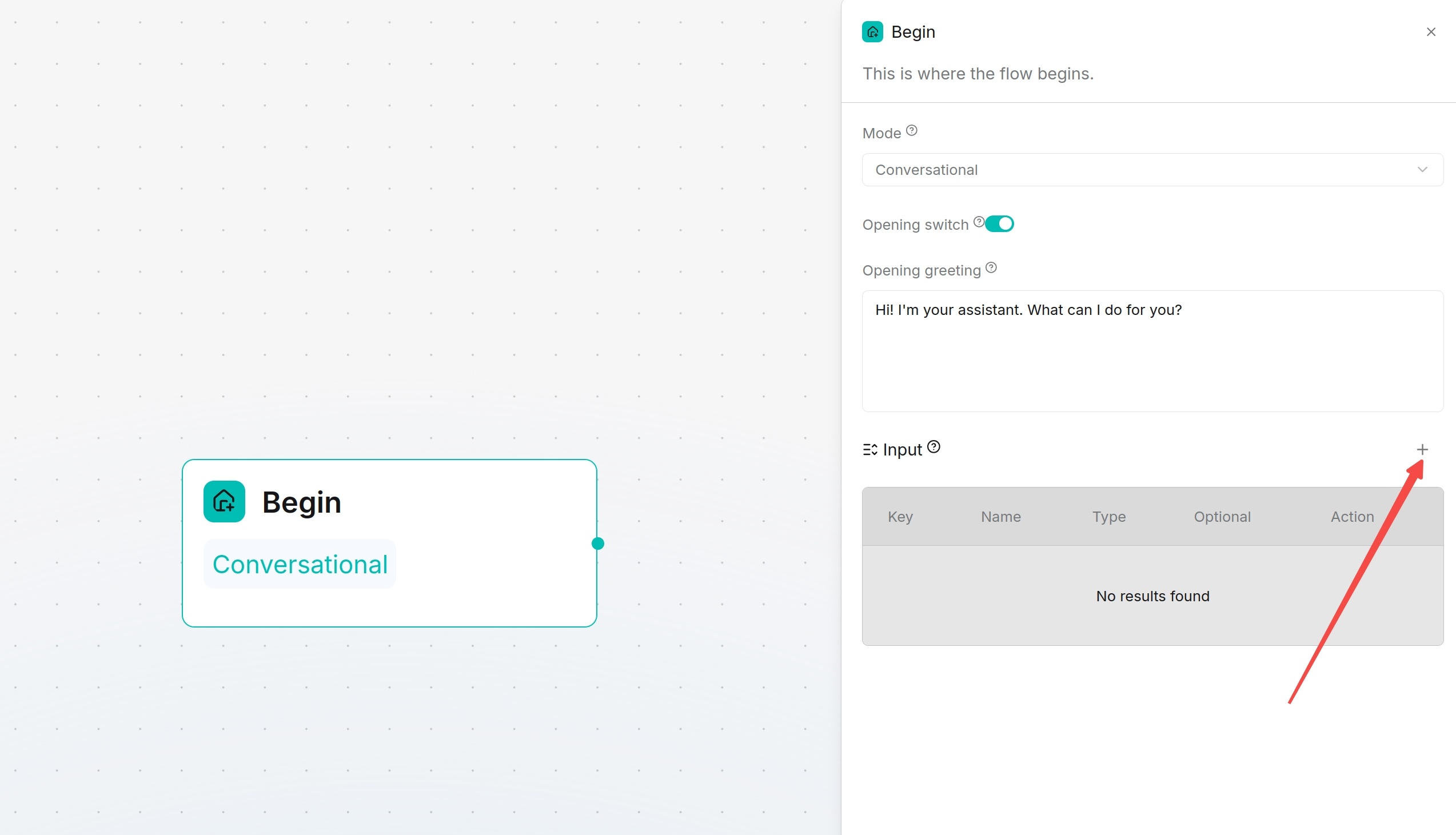
Input is used to define the input parameters that users need to provide before starting a conversation. After configuration, subsequent components can reference these inputs through variables.
In the Input area of the right configuration panel for the Begin component, click the + button in the upper right corner to add an input variable.
Common fields are as follows:
- Name: The variable display name.
- Type: The variable type, including single-line text, paragraph text, dropdown options, file upload, number, and Boolean.
- Key: The variable key, used by subsequent components for reference.
- Optional: Whether the input is optional.
Variable types:
| Type | Description |
|---|---|
| Single-line text | Used to enter short text, such as names, keywords, and serial numbers. |
| Paragraph text | Used to enter longer content, such as problem descriptions, requirement descriptions, and prompts. |
| Dropdown options | Provides predefined options for users to select. You can click Add option to add multiple options. This is suitable for fixed-value inputs such as language, department, and model type. |
| File upload | Allows users to upload files as workflow input. This can be used for document analysis, image processing, and similar scenarios. Uploaded files are not automatically saved to knowledge bases, and are used only in the current workflow. |
| Number | Used to enter numeric values, such as quantity, threshold, Top K, and maximum returned items. |
| Boolean | Provides a switch (True/False) or yes/no option, used to control whether a feature is enabled or whether a branch is executed. |
:::tip NOTE
Files uploaded through the Begin component are used only as input for the current workflow. They are not automatically saved to knowledge bases, and they do not use knowledge base parsing, OCR, or chunking capabilities. File content can be passed to subsequent components as variables, and is limited by the model context length.
:::
Agent Component
The Agent component is used to call large language models for reasoning, content generation, task planning, and tool calling. It can process user questions independently, or work with components such as knowledge retrieval, HTTP requests, code, databases, and sub-agents to complete multi-step tasks.
The Agent component can work independently and has the following capabilities:
- Reason, reflect, and adjust based on context and execution results.
- Call tools or sub-agents to complete tasks.
- Control reply style, task boundaries, and output format through system prompts and user prompts.
Basic Configuration
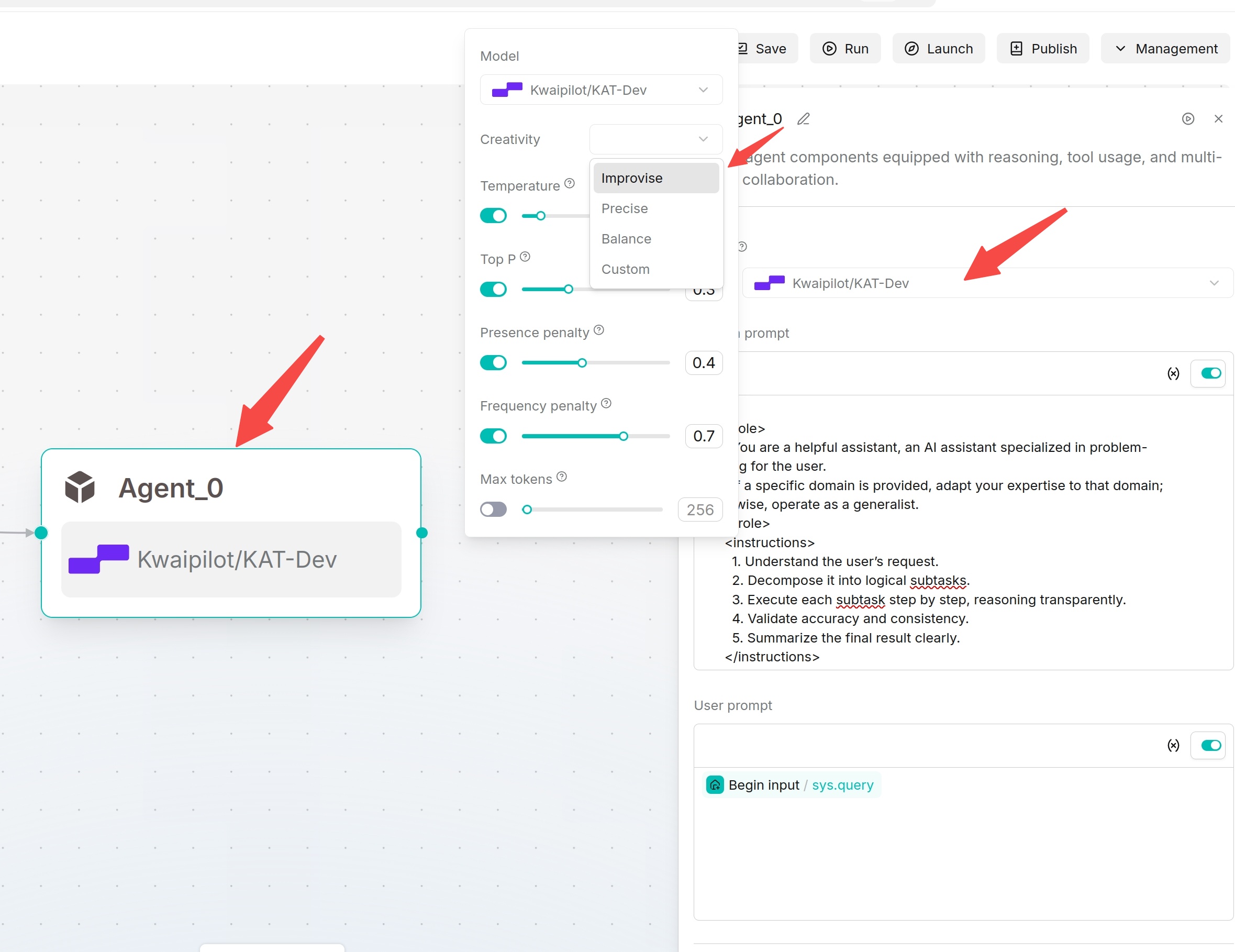
Common configuration items for the Agent component include Model, System prompt, User prompt, Tools, Agent, Message window size, Max retries, Delay after error, Max reflection rounds, and Output.
Configuration steps:
- Click the Agent component to open the right configuration panel.
- Select a chat model in Model.
- Set Creativity as needed, or keep Precise.
- Describe the role, constraints, and output format in System prompt.
- Write the task in User prompt, and insert variables by typing
/. - If retrieval, SQL, HTTP, MCP, or sub-Agents are required, add Tools or Agent.
- Set the output variable name.
- Save and run tests.
Prompt Configuration
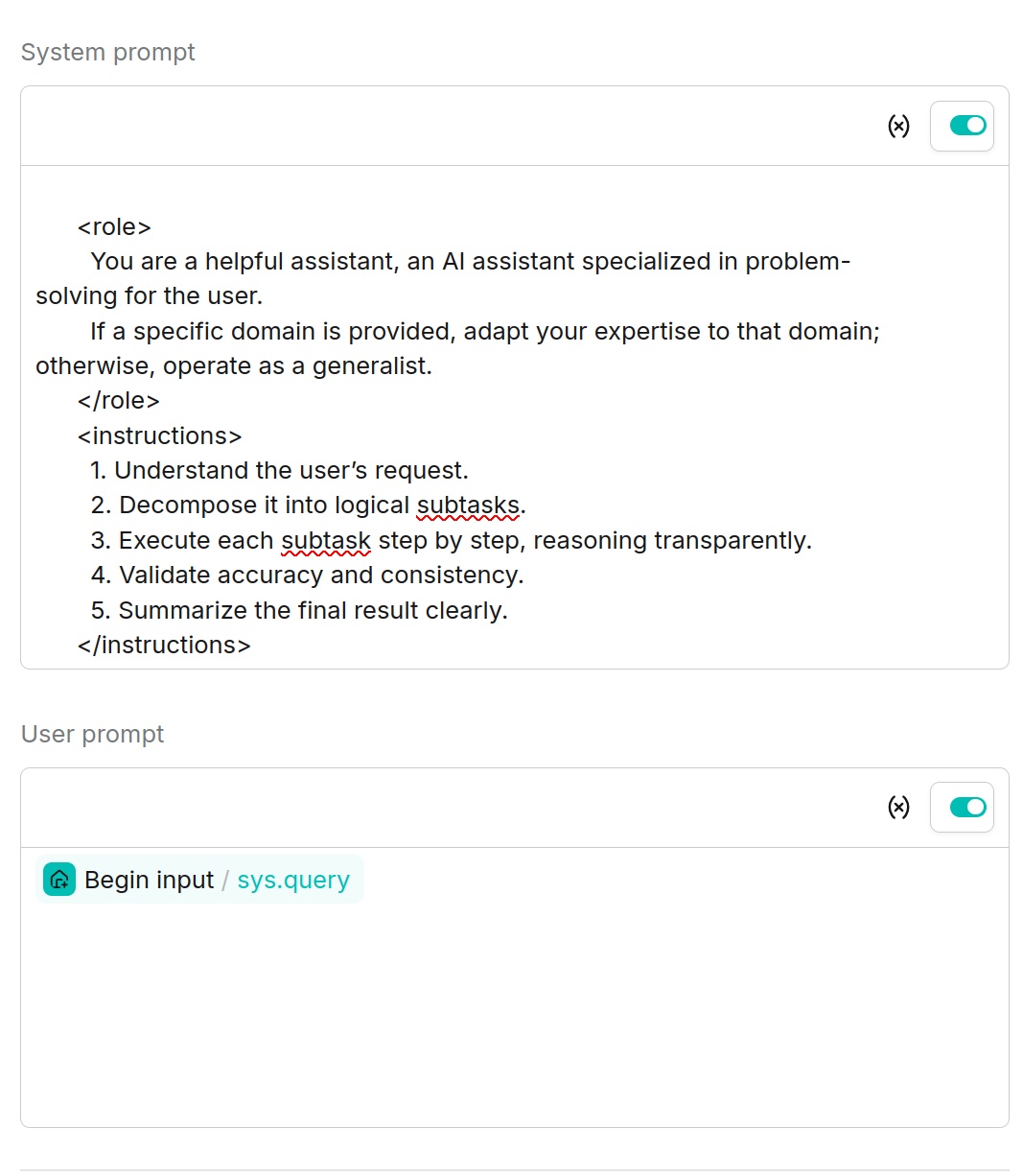
The system prompt is used to define the model role and behavior boundaries. The user prompt is used to define the current task and input data.
If the Agent component follows a knowledge retrieval component, you usually need to reference formalized_content in the user prompt so that the model answers based on the retrieval results.
Example:
Please answer
/sys.querybased on/Retrieval_0.formalized_content. If the retrieval results are insufficient, clearly state that confirmation cannot be obtained from the knowledge base, and do not fabricate answers.
Tools and Sub-Agents
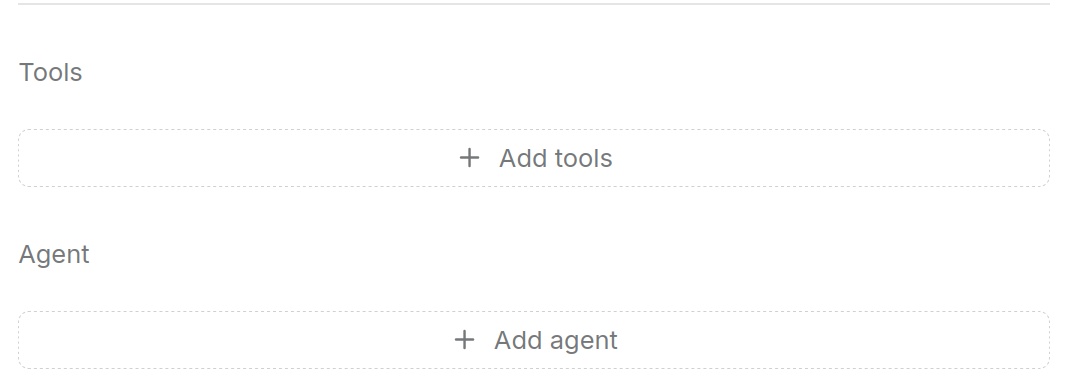
When tools or sub-agents are added under an Agent component, the current Agent acts as a planner and determines when to call these capabilities. Tools can be knowledge retrieval (Retrieval), Execute SQL, HTTP Request, MCP Server, or other available components. Sub-agents are used to split complex tasks and assign them to different roles for collaboration.
It is recommended to describe tool trigger conditions in the system prompt. For example: "Call knowledge base retrieval first when product documents are involved" or "Call the HTTP API when order status is involved".
:::tip NOTE
Tool calling, sub-agents, reflection rounds, and a larger message window size all increase response time. For regular Q&A, prefer a simple workflow. Enable tools and multi-agent planning only when planning is truly required.
:::
Advanced Settings
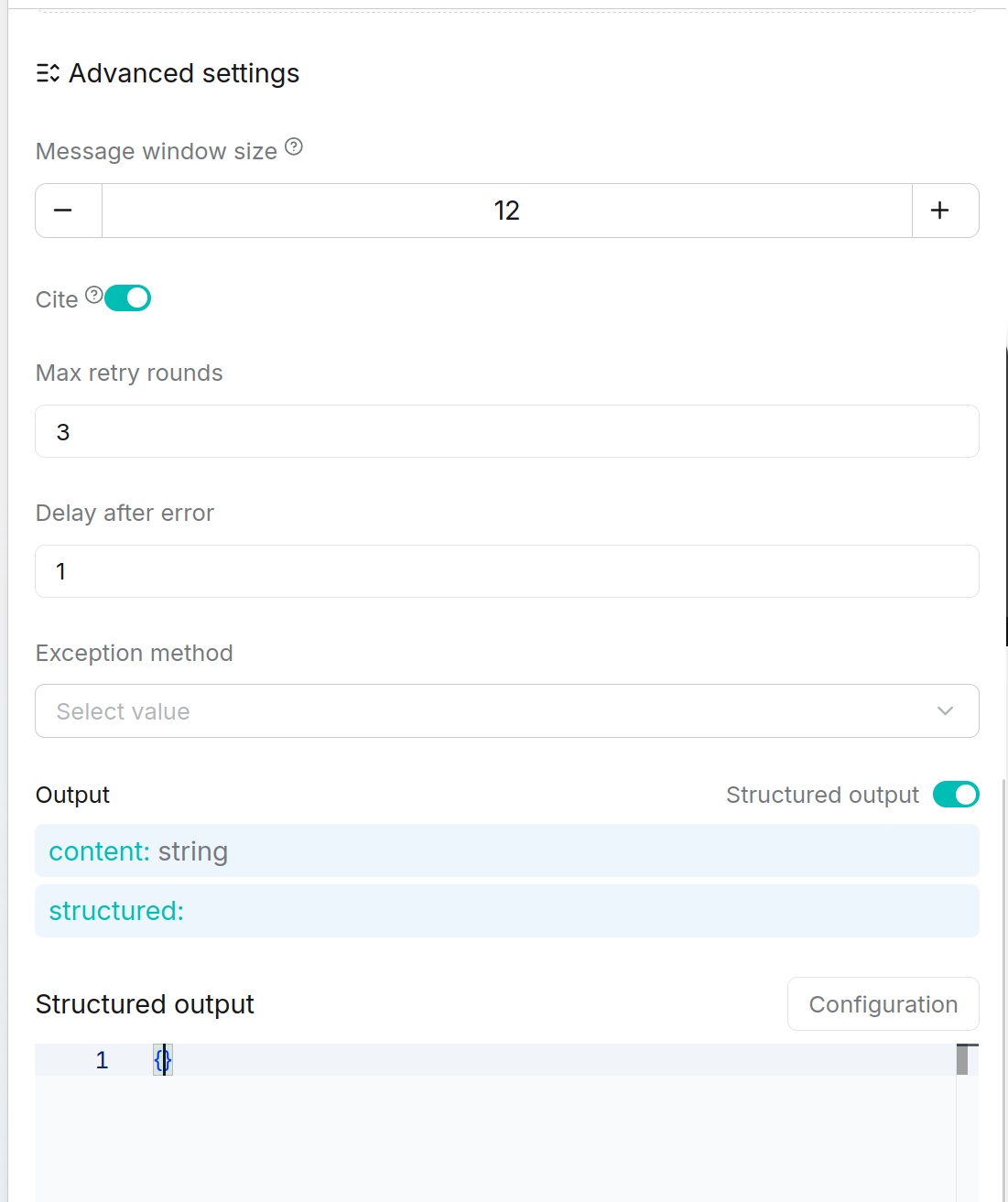
Advanced settings are used to control context management, exception handling, output format, and other runtime behavior for the Agent node. In most cases, keep the default configuration. When you need to optimize Agent execution results or adapt to a specific business scenario, adjust these settings based on actual requirements.
Parameter description:
| Parameter | Description | Suggestion |
|---|---|---|
| Message window size | Sets the number of historical messages retained by the Agent during reasoning. A larger window provides more context, but increases token consumption. | Keep the default value in general. Increase it for multi-turn conversations, and decrease it for single-turn tasks. |
| Citation | Specifies whether to return citation information in answers. When the Agent uses knowledge bases or retrieval results to generate answers, source citations can be enabled to make it easier to view the basis for the answer. | Recommended for knowledge base Q&A scenarios. |
| Max retries | The maximum number of retries after Agent execution fails. When model calls or tool calls fail, the system automatically retries. | Keep the default value. Increase it when the network is unstable. |
| Delay after error | The waiting time, in seconds, before each retry. This helps avoid another failure caused by continuous requests within a short time. | Keep the default value in general. |
| Exception handling method | Sets how the Agent handles exceptions during execution. Different options determine whether execution continues, exception information is returned, or another handling policy is used after an error occurs. | Select based on business requirements. Keep the default value if there are no special requirements. |
Output is used to configure the output content of the Agent node.
| Configuration item | Description |
|---|---|
content |
The natural language text returned by the Agent. This is the default output. |
structured |
Structured data returned by the Agent. After structured output is enabled, results can be output according to a predefined JSON Schema, making it easier for subsequent nodes to read and process. |
For structured output, after enabling Structured output, click Configuration to configure the output structure. Users can define the returned data format according to JSON Schema, such as specifying field names, data types, and required fields. The Agent tries to return results according to the configured structure, making it easier to pass data to nodes such as Code, HTTP Request, SQL, and condition judgment for automated processing.
Knowledge Retrieval Component
The knowledge retrieval component is used to retrieve relevant content from specified knowledge bases or memories. It can be used as a regular workflow component, or as a tool for the Agent component.
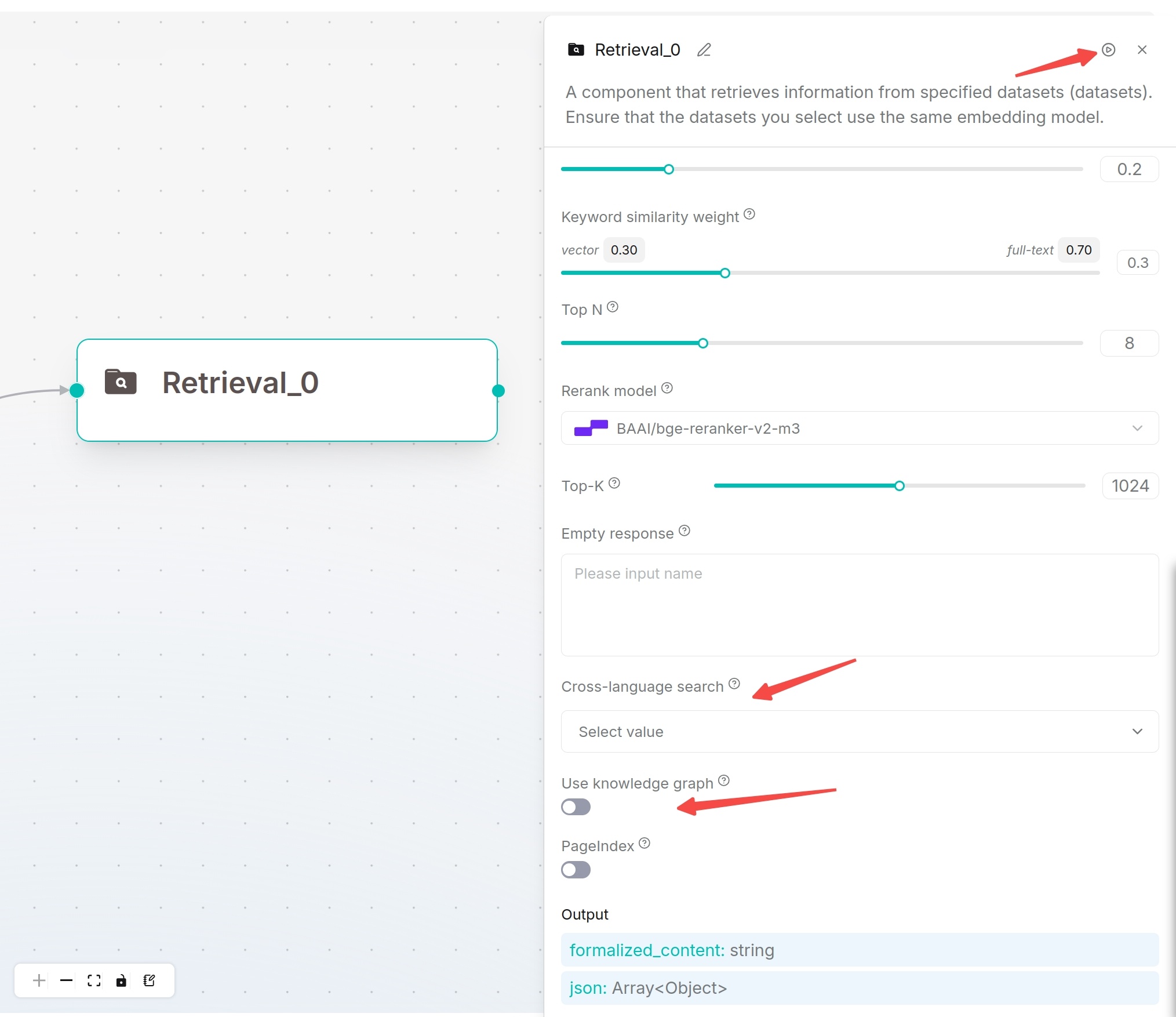
Configuration steps:
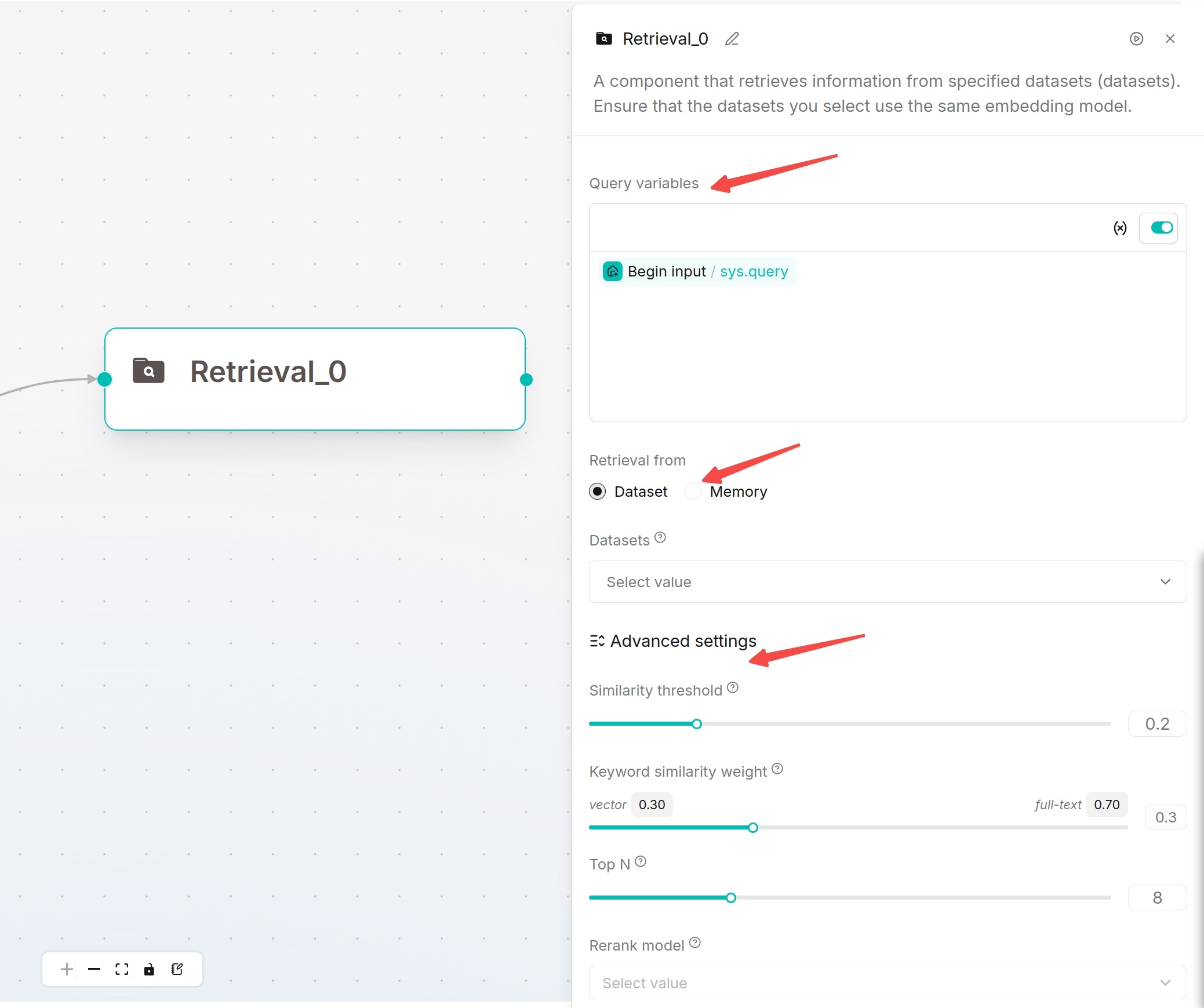
- Click the knowledge retrieval component.
- In Query variable, select the query source.
sys.queryis commonly used. - In Retrieval source, select one or more knowledge bases, or select Memory.
- Adjust Similarity threshold, Keyword similarity weight, and Top N as needed.
- For cross-language retrieval, select a Cross-language search language.
- For graph multi-hop Q&A, enable Use knowledge graph.
- Click Run to test the retrieval results.
Parameter Description
Similarity threshold is used to filter low-relevance chunks. The higher the threshold, the stricter the returned content, but useful information may be missed.
Keyword similarity weight is used to control the weight of vector similarity in the overall similarity score. When retrieving from multiple knowledge bases together, make sure they use the same embedding model.
Top N specifies the number of chunks sent to subsequent components. Too few chunks may result in insufficient information, while too many chunks may increase response time and context pressure.
Enabling a Rerank model usually improves the sorting of knowledge retrieval results, but also adds model call latency. For Agents that are sensitive to speed, you can leave reranking disabled at first.
Similarity threshold is used to filter low-relevance chunks. The higher the threshold, the stricter the returned content, but useful information may be missed.
Configuration Suggestions
The following values are only initial configuration references. Actual results are affected by the embedding model, document quality, chunking method, and business questions. Adjust them based on knowledge retrieval test results.
Retrieval parameters directly affect answer coverage, accuracy, and response time. You can start with the settings in the following table, and then optimize them based on real questions.
| Parameter | Suggested Value | Scenario | Description |
|---|---|---|---|
| Top N | 3-5 | FAQ and short knowledge entries | Faster responses for clear answers. |
| Top N | 5-10 | Product documentation and help centers | Default recommended range. |
| Top N | 10-20 | Legal contracts and long document analysis | More context with higher token consumption. |
| Similarity threshold | 0.2 | Loose recall | Questions with diverse expressions. |
| Similarity threshold | 0.5 | General Q&A | Default starting value. |
| Similarity threshold | 0.8 | Strict precise matching | Scenarios that require exact terminology matching. |
Reply Message Component
The message is used to output static or dynamic messages to users, and is usually used as the final component of a workflow. It can directly write fixed text, or insert upstream variables.
Configuration Method
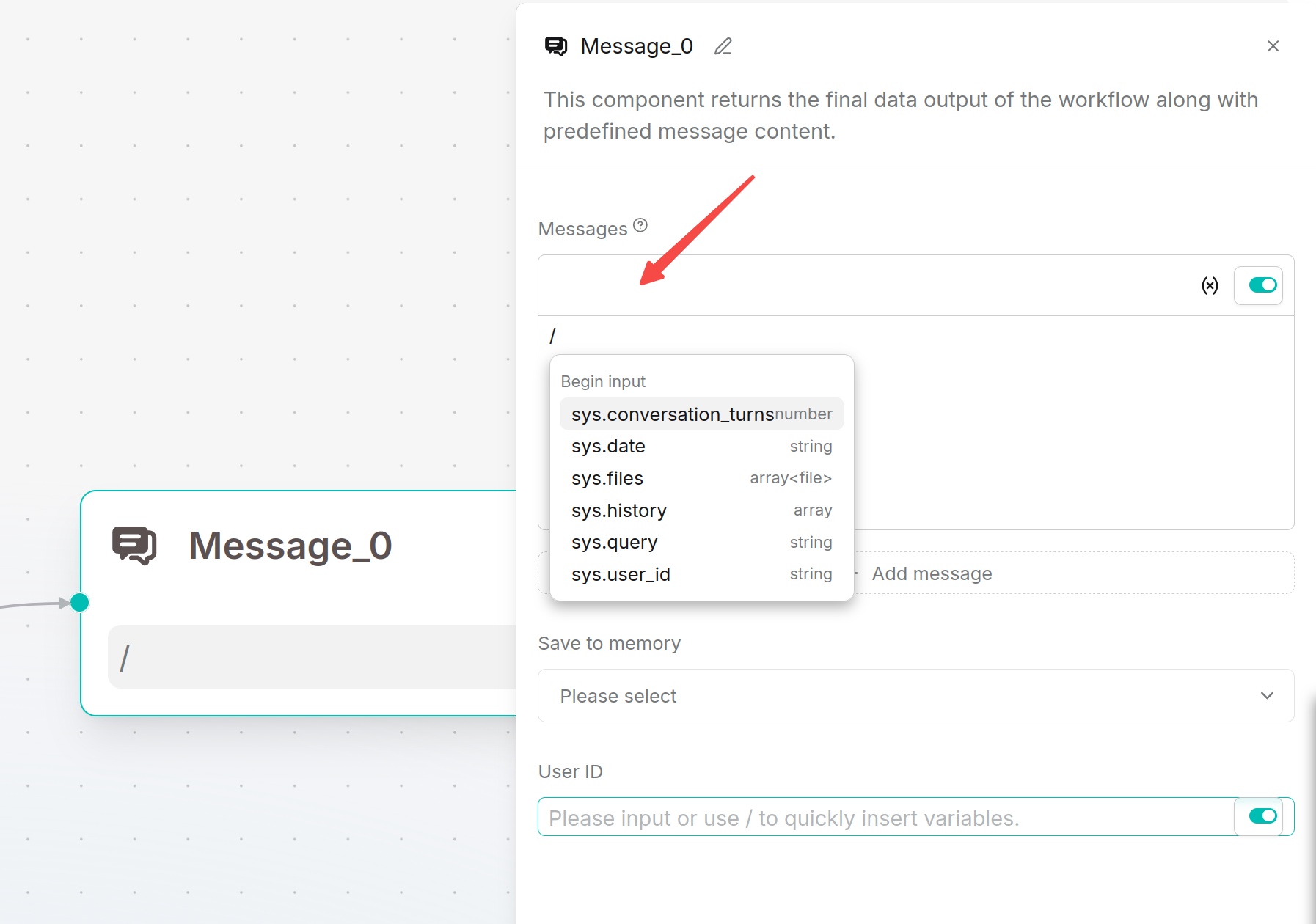
Write the output content in the message. Type / or click the variable button to insert component outputs.
If multiple messages are added, the system randomly selects one of them to send. When the Begin component selects Webhook and the response method is Final response, the reply message component can set an HTTP status code in the range of 200 to 399.
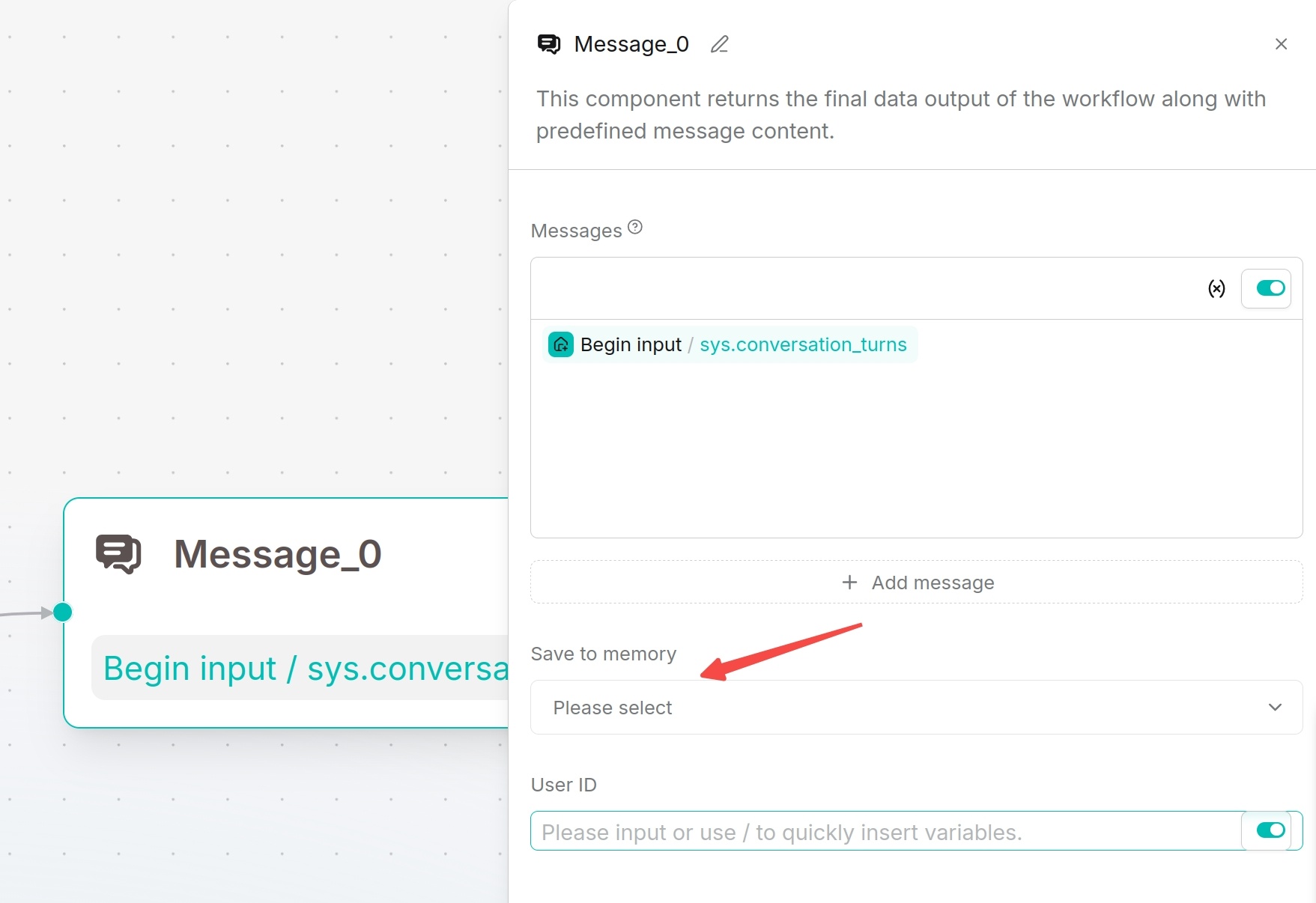
Save to Memory
The reply message component can choose to save to memory, storing the conversation in the specified memory. After enabling User ID, conversations can be associated with user IDs, and subsequent knowledge retrieval can query related memories by user ID.
Applicable Scenarios
This component is suitable for outputting final answers, branch hints, fallback replies, or displaying intermediate processing results to users.
Output Result
The message outputs the configured text or variable content to the conversation window, webhook response, or embedded page.