1097cc9c84
add chat channel images
add compilation docs
fixed incorrect section organization of agent docs
fixed duplicate text issues.
4.5 KiB
sidebar_position, title, sidebar_label, slug, sidebar_custom_props
| sidebar_position | title | sidebar_label | slug | sidebar_custom_props | ||
|---|---|---|---|---|---|---|
| 3 | Flow Components | Flow Components | /flow_components |
|
Flow Components
Switch Component
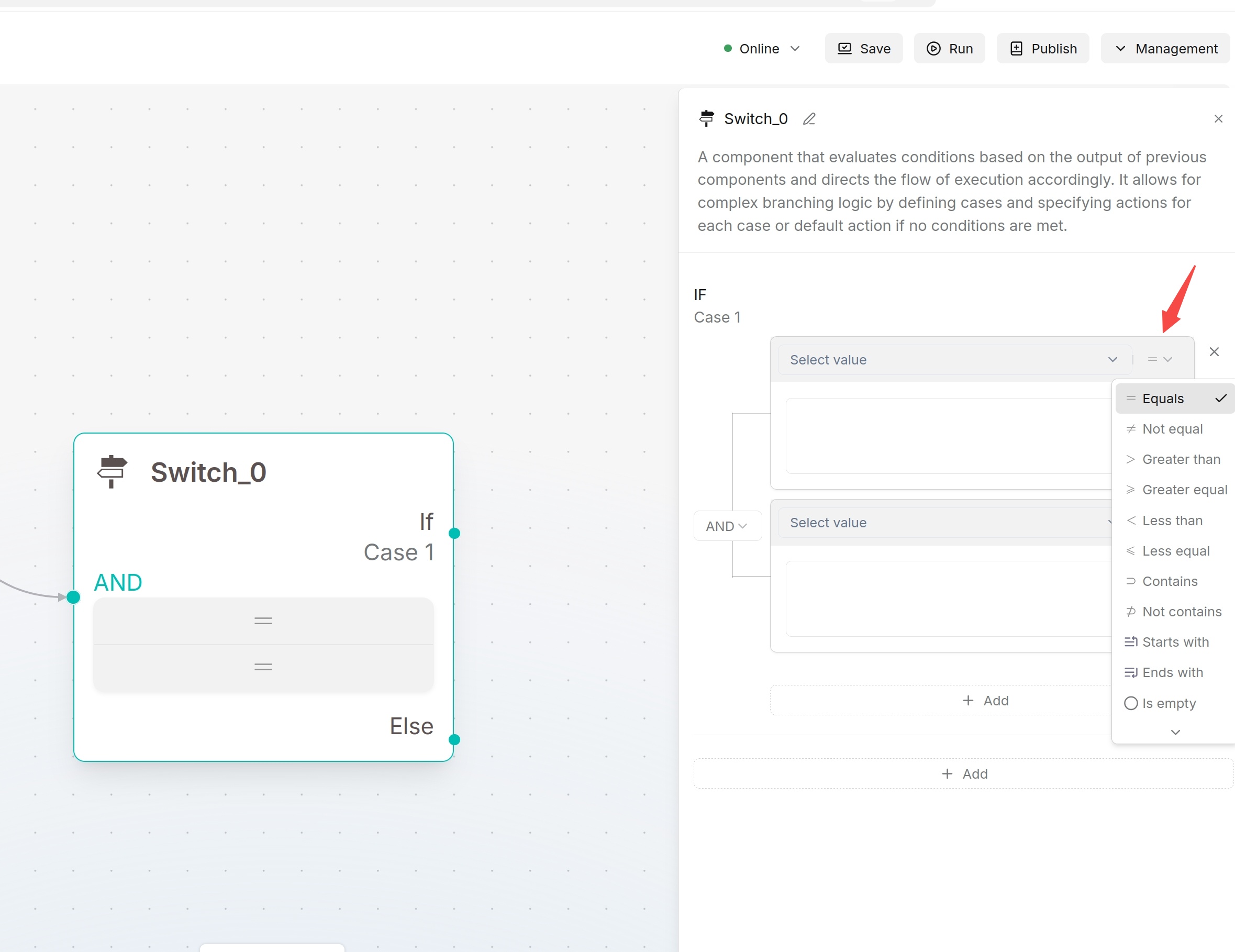
Switch executes rule-based judgment and routes workflows to different downstream paths according to results.
Configuration Method
At least one Case must be defined. Each Case can contain multiple conditions combined by AND / OR. Supported operators: Equals, Not equal, Greater than, Greater equal, Less than, Less equal, Contains, Not contains, Starts with, Ends with, Is empty, Not empty.
:::tip NOTE Switch is rule-based judgment for structured data and clear conditions. Categorize uses LLM-based classification for natural language intent recognition. :::
Iteration
The Iteration component iterates over an array and repeatedly executes the same processing logic for each element. It is suitable for scenarios such as batch file processing or processing multiple data items with the same logic.
Configuration
When configuring the Iteration component, set Query variables and Output.
- Query variables: Specifies the array variable to iterate over. You can select an array output from an upstream component or a system variable, such as
sys.filesorsys.history. The Iteration component processes each element in the array in sequence and executes the configured internal workflow. - Internal workflow: Add the components to be repeatedly executed inside the Iteration area. In each iteration, the internal workflow processes the current array element until all elements in the array have been processed.
- Output: Defines the results returned by each iteration. You can add one or more output fields and select variables generated by components inside the Iteration as their values. After all iterations are completed, the component aggregates the results and makes them available to downstream components.
Note
The Iteration component is suitable when the input is an array and each element can be processed independently. For example, by selecting
sys.files, you can process multiple files uploaded by the user one by one.
Loop Component
Iteration splits text into fragments and executes the same set of internal components for each fragment. Suitable for long-text translation, paragraph-wise summarization, batch generation and item-by-item list processing.
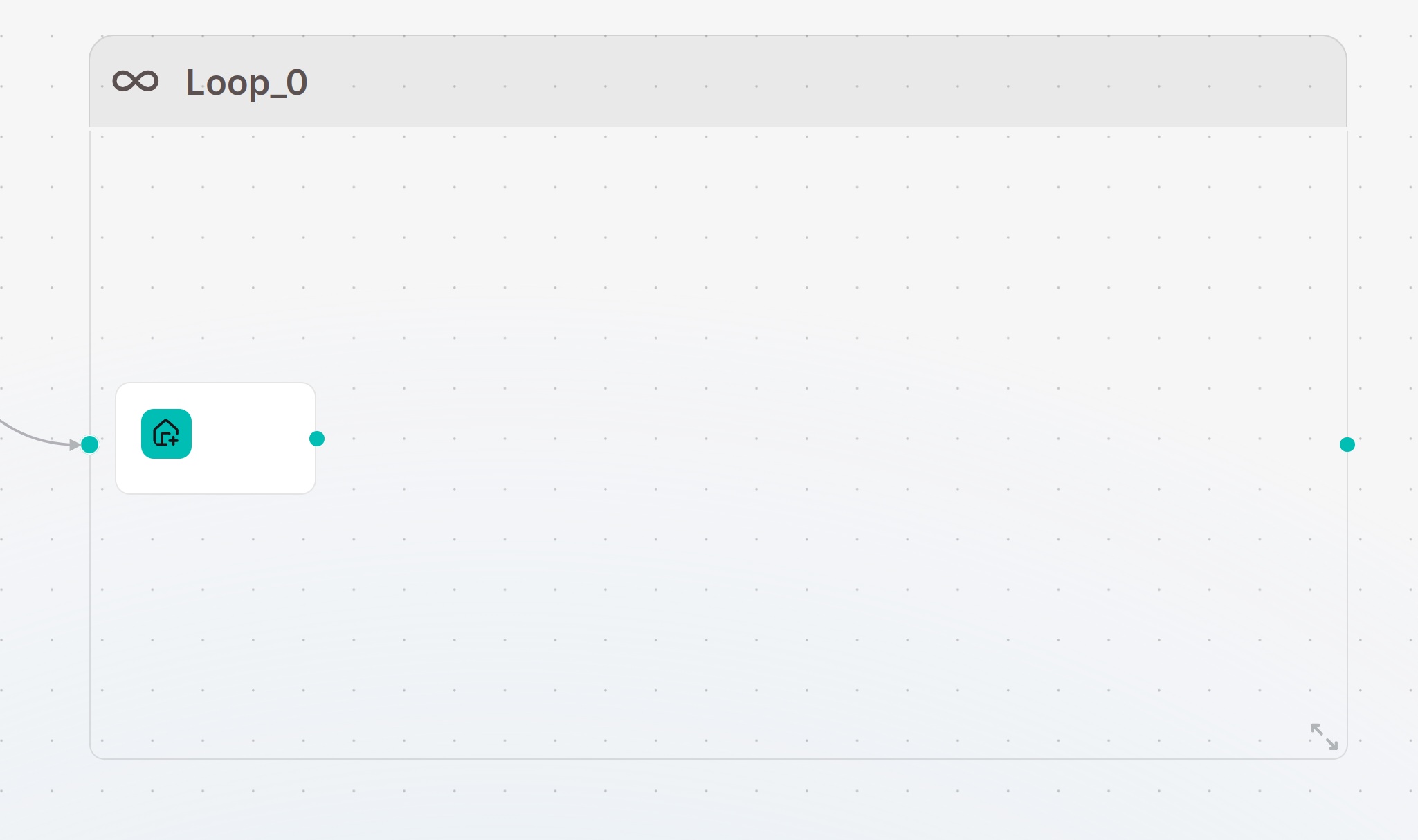
Internal Workflow:
Iteration contains built-in Loop Item. Components dragged inside Iteration can only be accessed within the loop. Reference Loop Item to obtain current fragment data.
Configuration Method
Configuration
When configuring the Loop component, you need to set the loop variables, loop termination condition, and maximum loop count.
- Loop variables: Define the variables used during the loop. Set the variable name, type, and initial value. Other components within the loop can read or update these variables.
- Loop termination condition: Defines the condition for exiting the loop. When the condition is met, the Loop stops. Otherwise, it continues to the next iteration.
- Maximum loop count: Limits the maximum number of loop iterations to prevent an infinite loop if the termination condition is never met. The Loop automatically stops when the maximum loop count is reached.
:::tip NOTE Configure both termination condition and maximum loop count to avoid long-running infinite loops. :::
Categorize Component
Categorize uses LLM to judge user intent or input category and branch the workflow based on classification results.
Configuration Method
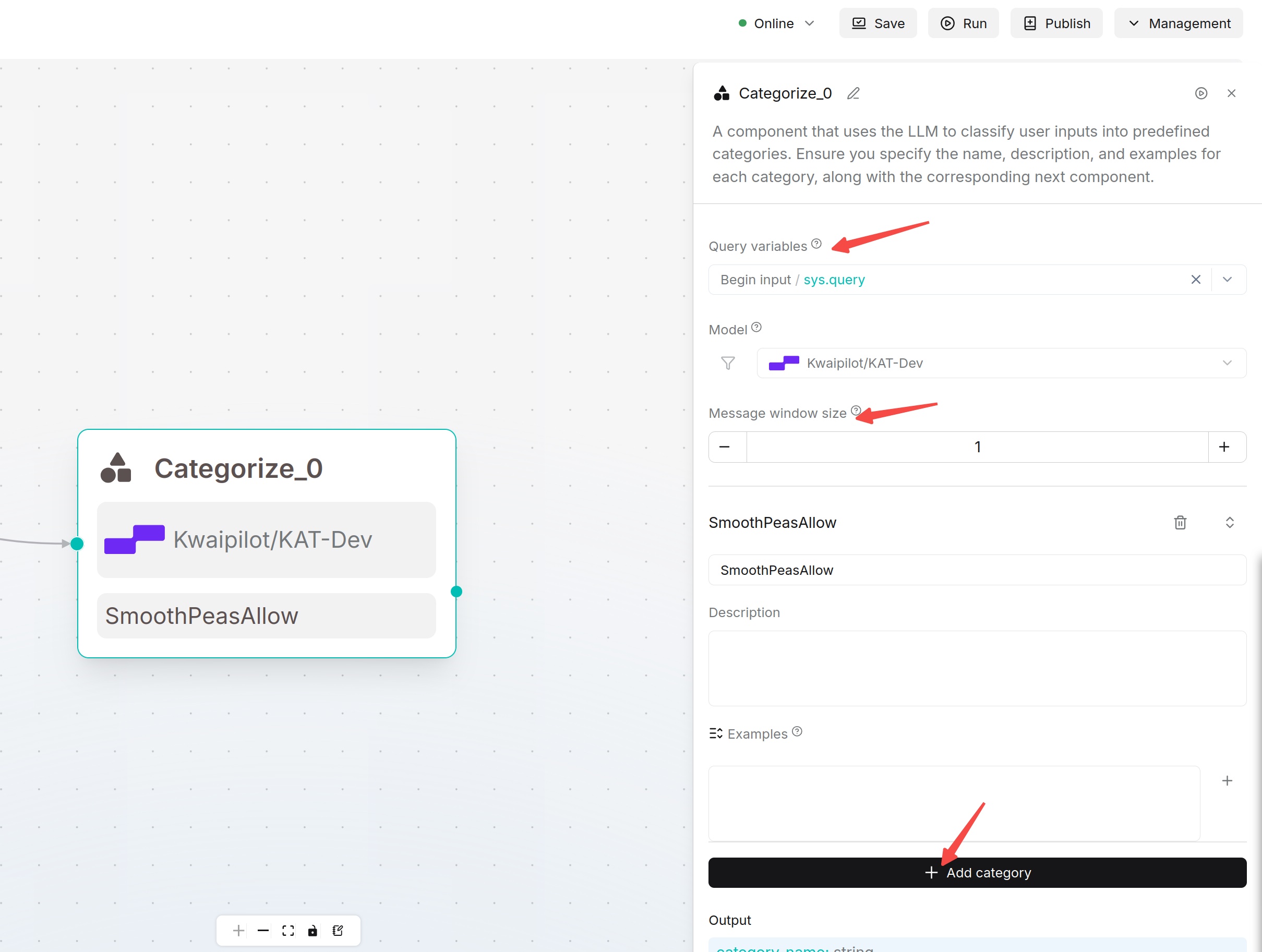
- Select content to classify in Query variable / Input.
- Select model and Creativity.
- Configure message window size (keep default for single-turn classification).
- Add at least two Categories.
- Fill clear Name, Description and Examples for each category.
- Connect downstream components for each classification result on the canvas.
Classification Recommendations
Use easy-to-understand category names, e.g. Product Consultation, Installation Reservation, After-sales Fault, Other Questions. Examples improve classification stability; provide 2~3 typical samples for each category.