 Alem Tuzlak
79ce60c580
Alem Tuzlak
79ce60c580
Replace eslint and prettier with oxlint and oxfmt for faster linting
and formatting across the monorepo. Remove all eslint and prettier
configs, dependencies, and related packages. Add .oxlintrc.json and
.oxfmtrc.json for the new tooling. Update CI workflows and lefthook
hooks accordingly. Reformat codebase with oxfmt.

https://claude.ai/code/session_01GMkSf29p78HuMR1mbXn8He
CoAgents Research Canvas Example
This example demonstrates a research canvas UI.
Live demo: https://copilotkit.ai/examples/canvas-research
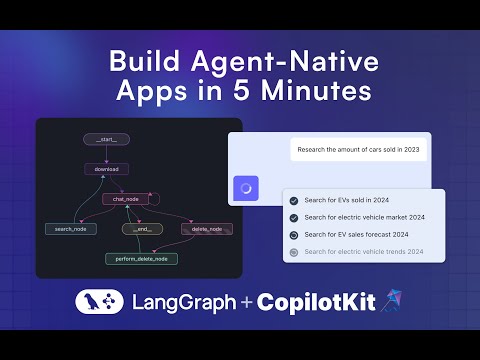
Tutorial Video:
Running the Agent
These instructions assume you are in the coagents-research-canvas/ directory
Running the Agent
First, install the backend dependencies:
Python SDK
cd agent-py
poetry install
JS-SDK
cd agent-js
pnpm install
Then, create a .env file inside ./agent-py or ./agent-js with the following:
OPENAI_API_KEY=...
TAVILY_API_KEY=...
LANGSMITH_API_KEY=...(JS ONLY)
⚠️ IMPORTANT: Make sure the OpenAI API Key you provide, supports gpt-4o.
Then, run the demo:
Python
poetry run demo
Running the UI
First, install the dependencies:
cd ./ui
pnpm i
Then, create a .env file inside ./ui with the following:
OPENAI_API_KEY=...
Then, run the Next.js project:
pnpm run dev
⚠️ IMPORTANT:
If you're using the JS agent, follow the steps and uncomment the code inside the app/api/copilotkit/route.ts, remoteEndpoints action:
//const runtime = new CopilotRuntime({
// remoteEndpoints: [
// Uncomment this if you want to use LangGraph JS, make sure to
// remove the remote action url below too.
//
// langGraphPlatformEndpoint({
//   deploymentUrl: "http://localhost:8123",
//   langsmithApiKey: process.env.LANGSMITH_API_KEY || "", // only used in LangGraph Platform deployments
//   agents: [{
//       name: "research_agentt",
//       description: "Research agent"
//   }]
// }),
// ],
//});
Next for JS run these commands:
- Run this command to start your LangGraph server
npx @langchain/langgraph-cli dev --host localhost --port 8123 - Run this command to connect your Copilot Cloud Tunnel to the LangGraph server
npx copilotkit@latest dev --port 8123
Usage
Navigate to http://localhost:3000.
LangGraph Studio
Run LangGraph studio, then load the ./agent-py folder into it.
Troubleshooting
A few things to try if you are running into trouble:
- Make sure there is no other local application server running on the 8000 port.
- Under
/agent/research_canvas/demo.py, change0.0.0.0to127.0.0.1or tolocalhost